
Instagram Photos to Canvas: How-To Guide 2026
· 10 min read
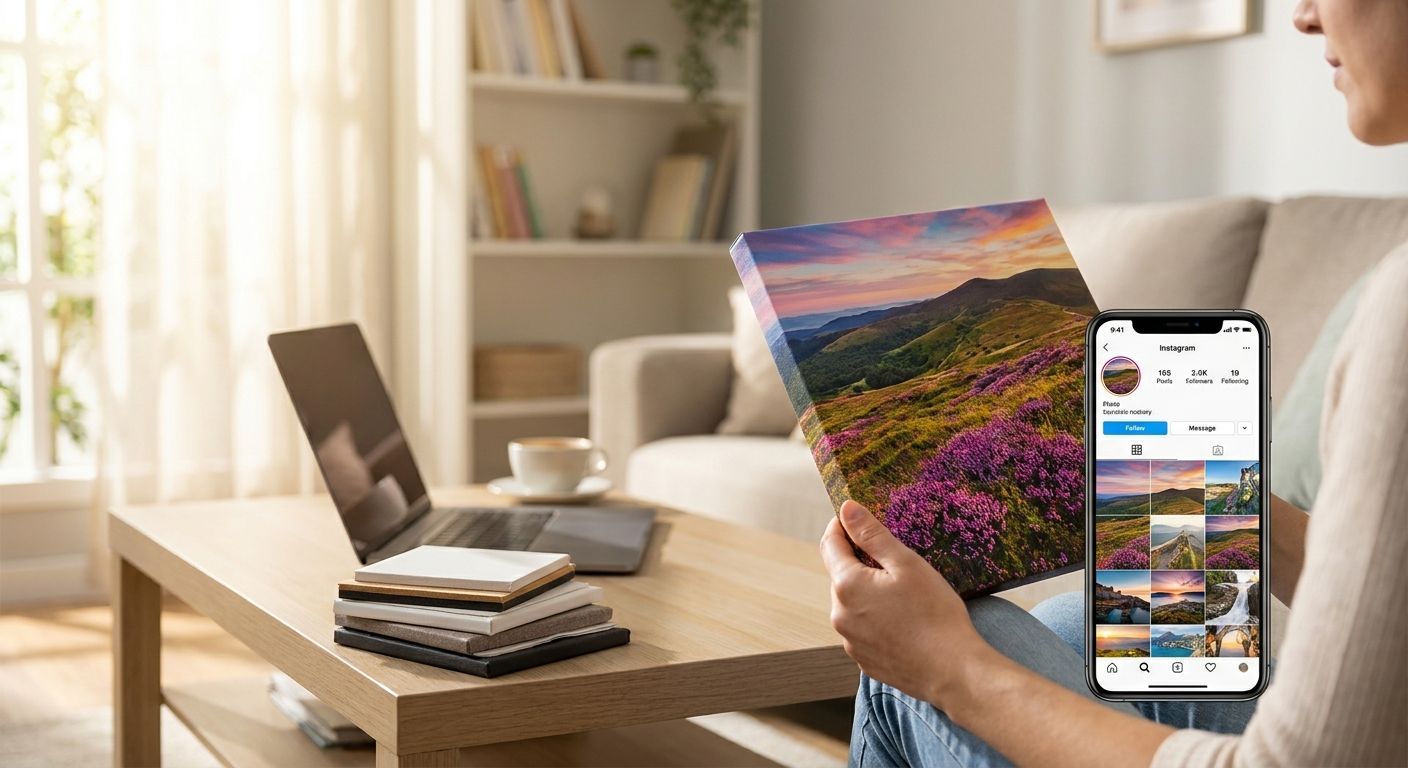
Turning Instagram photos into canvas prints is one of the easiest ways to get your best shots off your phone and onto a wall, but Instagram's compression can wreck print quality if you skip a few steps first. This guide walks through exactly how to pick, prep and order Instagram photos to canvas so the finished piece looks as sharp as the original shot.
TL;DR
- Pull the original camera roll file, not the Instagram feed version, before you order instagram photos to canvas in 2026.
- Square Instagram crops need reframing for most canvas sizes — check this before you upload.
- A3 and smaller canvas sizes forgive Instagram's compression better than large statement pieces.
- Order photo prints straight from your phone once the file passes a zoom-in sharpness check.
Why this matters
Instagram compresses every photo you post, sometimes down to a fraction of the file size your phone camera originally captured. Print that compressed version at 16x12 inches or larger and the softness that was invisible on a 6-inch screen becomes obvious on canvas. Getting the source file right before you upload is the single biggest factor in whether your canvas print looks crisp or disappointing.
The good news: most Instagram photos worth printing were shot on a phone camera that captured far more detail than Instagram ever shows you. The fix isn't complicated, it just needs the right order of operations.
What you'll need
- The original photo file from your camera roll (not a screenshot of the Instagram post)
- A phone or laptop with at least 10 minutes free
- Basic cropping tool (built into most phone galleries)
- A sense of which canvas size and orientation suits the room it's going in
- Access to order photo prints straight from your phone if you're doing this entirely on mobile
If you deleted the original and only have the Instagram-compressed version, that's still workable for smaller canvas sizes — more on that in troubleshooting below.
The steps
1. Find the original file, not the Instagram version
Instagram re-compresses images on upload, which strips detail you can't get back later. Go to your camera roll and find the photo by date rather than saving it from the Instagram app itself. This one step does more for final print sharpness than any editing you'll do afterward.
Common mistake: long-pressing to save the image directly from the Instagram post. That file has already been through Instagram's compression twice — once on upload, once on save — and it shows on anything above A4 size.
2. Check the resolution before you commit
Open the image and check its pixel dimensions in your phone's photo details or file info. As a rough rule of thumb for canvas printing, more pixels per inch at your target size means a sharper result — a photo that looks pin-sharp when you zoom in to 100% on your phone screen is a good sign it'll hold up at canvas size.
Zoom in to full screen on the areas that matter most — faces, text, fine detail. If it's blurry at 100% zoom on your phone, it'll be blurry on the wall.
3. Crop for the canvas shape, not the Instagram square
Instagram's default 1:1 square crop rarely matches standard canvas dimensions. Decide your canvas orientation — portrait, landscape or square — before you crop, and reframe the shot to suit rather than accepting Instagram's original crop.
This matters most for portraits and pet photos where cropping too tight cuts off ears, hands or the top of someone's head. Leave breathing room around the subject; you can always crop tighter later, but you can't add back what's been cut.
4. Skip heavy filters, keep exposure fixes
Instagram filters that looked good on a phone screen can shift colour balance in ways that print differently, especially heavy vignettes or high-contrast presets. Basic exposure, brightness and colour correction translate to canvas fine — it's the stylised filters that cause the biggest gap between what you see on screen and what comes back printed.
If you already applied a filter when you originally posted, that's fine for smaller canvas sizes. For a large statement piece, it's worth re-editing from the unfiltered original.
5. Match canvas size to what the file can support
A photo that's sharp at 12x8 inches might turn soft at 24x16. If you're set on a bigger piece and the source file is borderline, either source a higher-resolution version from your camera roll or size down. Smaller canvas prints are consistently more forgiving of average phone-camera files than large ones.
The wall it's going on matters too — a single statement canvas above a sofa reads differently to a wedding photo display made up of several smaller prints, so factor that into your size decision.
6. Upload directly from your phone
Once the file's ready, upload it straight from your camera roll rather than routing it through another app first, which risks another round of compression. Pixa Prints lets you go from camera roll to order without touching a desktop, which keeps the file as close to original quality as possible right through to checkout.
7. Preview before you confirm
Use the online preview to check the crop lines up, nothing important got cut off at the edges, and there's no visible pixelation when you zoom in on the preview itself. This is the last checkpoint before the file goes to print, so don't skip it even if you're in a rush.
Common mistake: confirming the order without checking the preview crop, then discovering the canvas cut off the top of someone's head because the aspect ratio shifted during upload.
8. Choose how it'll be displayed
A single Instagram favourite works as a standalone statement canvas. A batch of holiday or pet shots works better as a small gallery cluster. Decide this before ordering so you pick consistent sizing across the set rather than mismatched canvases that don't line up on the wall.
Ready to print your Instagram favourites?
Upload straight from your camera roll and preview before you order.
Troubleshooting
- The preview looks blurry: go back to the source file and zoom to 100% on your phone. If it's soft there, it'll be soft on canvas — size down or find a sharper original.
- The crop cuts off part of the subject: adjust the crop manually in the preview tool rather than accepting the default centred crop, especially for square Instagram originals going onto a landscape or portrait canvas.
- Colours look different from what you remember posting: heavy Instagram filters and screen colour calibration both shift how an image reads. Re-check the unfiltered original before ordering if colour accuracy matters.
- You only have the Instagram-saved version, not the original: stick to smaller canvas sizes — A4 to A3 range typically forgives compression far better than anything above 16x12 inches.
- Ordering several pet or holiday shots for a gallery wall: keep the same canvas size and border style across the set so it reads as one collection rather than a random mix.
- Not sure the file will look right until it's printed: the online preview at checkout is the closest thing to a final check — trust a zoomed-in look at that over guessing from the original file alone.
Tools and resources
- Order photo prints straight from your phone for the fastest camera-roll-to-canvas route
- Canvas photo prints for pet portraits if your best Instagram shots are of the dog, not the humans
- Canvas photo prints for wedding photo displays for turning a run of Instagram wedding shots into a coordinated wall display
- Your phone's native photo app for checking original file resolution before you crop
What to do next
Once you've got one Instagram photo working as a canvas, the same source-file rules apply to bigger projects — a set of holiday shots turned into a photo book, or your top twelve favourites turned into a calendar. If you're building out a set rather than a single canvas, how to pick photos for a personalised calendar covers the same resolution and cropping logic applied across twelve months instead of one print.
FAQ
Can you print Instagram photos on canvas in 2026?
Yes, but the quality depends on which version of the file you use. The original camera roll photo prints far sharper than a version saved directly from the Instagram app, which has already been compressed twice.
What's the best canvas size for an Instagram photo?
Smaller sizes, roughly A4 to A3, forgive Instagram's compression better than large statement pieces above 16x12 inches. Match the size to how sharp the original file looks when zoomed in to full screen.
Why does my Instagram photo look blurry on canvas?
It's almost always because the file used was saved from Instagram's compressed feed version rather than the original camera roll photo. Always source from your camera roll, sorted by date, not from the app itself.
Is a square Instagram crop fine for canvas printing?
Square works for a square canvas, but most standard canvas sizes are portrait or landscape, so the original crop usually needs reframing. Decide your canvas shape first, then crop to match rather than accepting Instagram's default square.
Do Instagram filters affect how a canvas print turns out?
Heavy filters and vignettes can shift colour balance in ways that read differently on canvas than on a phone screen. Basic brightness and exposure edits translate fine; stylised filters are worth reconsidering for larger prints.
Can I order Instagram photos to canvas straight from my phone?
Yes, uploading directly from your camera roll avoids extra compression from routing the file through another app first. It's the most reliable way to keep quality intact right through to checkout.
What if I only have the Instagram-saved version of an old photo?
Stick to smaller canvas sizes since the file has already lost detail through compression. A4 or A3 sizes typically hold up better than anything above 16x12 inches.
How many Instagram photos should I turn into a canvas gallery wall?
Three to five photos in matching sizes and border styles reads as a coordinated display rather than a random mix. Pick a consistent canvas size across the set before ordering.
One last thing
The photo people regret printing most isn't the blurry one — it's the one where the crop cut off someone's hand or the top of a head because the square Instagram frame got stretched to fit a rectangular canvas without a second look. Check the preview crop every single time, even on photos you've looked at a hundred times on your feed.