
Personalised Mouse Mat for Gaming: 2026 Buying Guide
· 9 min read
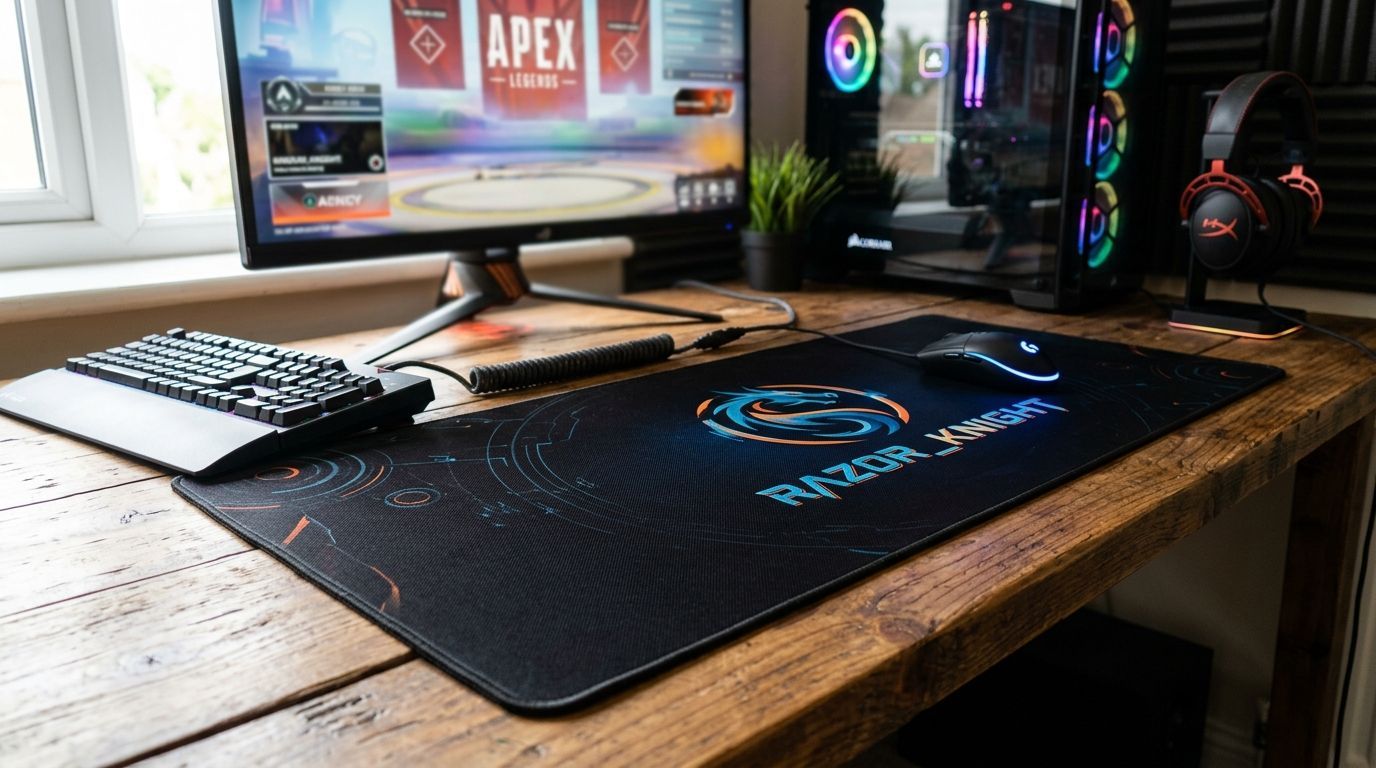
A personalised mouse mat for gaming is a custom-printed desk mat sized for full keyboard-and-mouse coverage, loaded with your own photo, artwork or gamer tag instead of a stock design. Gamers use it to turn a functional accessory into a setup statement, and the print needs to survive daily swiping without fading or curling at the edges.
TL;DR
- A personalised mouse mat for gaming should be at least desk-width to cover keyboard and mouse in one surface.
- Cloth-top mats give better mouse control for aim-heavy games; hard-top mats suit fast flick-shot styles.
- Upload the highest-resolution photo you have; a mat prints far larger than a phone screen so low-res images blur.
- Pixa Prints' personalised photo mouse mats for home offices work equally well for gaming desks needing full-size coverage.
- Skip busy background photos behind your crosshair zone; they slow reaction time more than people expect.
Why personalised mouse mats matter for gaming setups
A gaming desk lives on repetition: thousands of swipes a session, keyboard and mouse sitting on the same surface for hours. A generic mat wears unevenly and slides under fast movement, and neither problem shows up until you're mid-match. Pixa Prints already covers this ground in its guide to personalised photo mouse mats for home offices, and the same sizing and material logic carries over almost entirely to a gaming rig — the difference is what you put on the surface and how much desk it needs to cover.
Gamers searching for this product aren't shopping for decoration first. They want consistent glide, a mat that doesn't shift under a hard flick, and a design that won't distract from the game itself. That's a narrower brief than a home-office mat, and it changes what you should optimise for at each step.
Measure your desk before you pick a size
A mat that's too small forces you to lift and reposition mid-game, which costs you tracking accuracy at the exact moment it matters.
- Measure the full width your keyboard and mouse need side by side
- Add clearance for mouse swipes at low DPI settings, which need more physical space
- Check your desk depth if you want the mat to sit flush against a monitor arm base
- Round up rather than down — a mat that's slightly oversized never causes a problem
- Confirm your desk surface is flat; a mat over a seam or edge will bunch
Choose the surface finish for your play style
Cloth and hard-top mats behave differently under a mouse, and picking wrong is the single most common regret gamers report on forums and review threads.
- Cloth-top surfaces give more friction, which suits precision aim in shooters and MOBAs
- Hard-top or micro-textured surfaces give faster glide, which suits flick-heavy or high-sensitivity play
- Thicker mats reduce wrist fatigue over long sessions but sit higher relative to your keyboard
- Stitched edges resist fraying where a mouse repeatedly crosses the border
- A non-slip rubber base stops the whole mat drifting during aggressive swipes
Upload a photo that won't fight your focus
This is where the print becomes personal, and where most people either nail it or end up with a mat that's too busy to actually play on.
- Use a high-resolution image; a mat prints much larger than a phone or laptop screen shows it
- Pick photos with a clear focal point rather than cluttered backgrounds
- Avoid placing key detail directly under where your mouse sits for hours — it'll be hidden
- Landscape orientation photos generally suit wide gaming mats better than portrait shots
- If you're ordering from your phone, ordering photo prints straight from your phone covers the upload steps that also apply to mat design
Once you've settled on sizing and surface, uploading through a design tool that lets you preview the full mat before print is the faster route than guessing at proportions manually — this is the point where a printed personalised photo mat genuinely beats a blank desk pad.
Add a gamertag or logo without cluttering the surface
Text and logos need restraint on a mat this size, because your eye scans across it constantly during play.
- Keep gamertag text to corners or the top edge, away from the active mouse zone
- Use a font that stays legible at a glance, not a decorative script
- One logo or wordmark is enough — stacking two designs reads as busy, not personalised
- High-contrast text against your background photo reads faster in low desk lighting
Check the proof before you commit
A design that looks sharp on a monitor can print differently once it's stretched across mat-sized dimensions.
- Review any digital proof at full size, not thumbnail
- Check colour balance under your actual desk lighting if the tool allows a preview
- Confirm text placement lines up with where your palm rests, not just the visual centre
- Look for any stretching around the edges of a wide-aspect photo
Look after the mat once it arrives
Colour and grip both degrade faster with the wrong care routine, especially on cloth-top prints.
- Wipe cloth-top mats with a damp cloth rather than soaking them
- Keep drinks and greasy snacks off the surface near the mouse zone
- Avoid folding the mat for storage; rolling protects the print better
- Let a hard-top mat air dry fully before use if it's ever been wiped down
Comparing mouse mat options for gaming desks
| Option | Best for | Key limitation |
|---|---|---|
| Standard unbranded cloth mat | Budget-first gamers who don't care about design | No personalisation, generic look, easily lost among identical mats |
| Personalised photo mouse mat | Gamers who want a custom photo, gamer tag or design | Print quality depends entirely on the resolution of your uploaded image |
| Extended RGB desk mat | Gamers wanting full-desk coverage with lighting | Limited personalisation on most market options, higher desk footprint |
| Hard plastic speed mat | Fast-flick FPS players prioritising glide | Rarely offered with photo personalisation, noisier under mouse movement |
A personalised photo mouse mat is the only option on this list that lets a gamer combine full desk coverage with their own design, and it's the right call for anyone who wants their setup to look like theirs rather than a shelf display model.
Common mistakes gamers make with personalised mouse mats
- Ordering a mat too small for their setup — measuring the mouse pad alone instead of keyboard-plus-mouse space, then having to reposition mid-session
- Uploading a low-resolution phone screenshot — it looks fine on a 6-inch screen and blurs badly once stretched across a full mat
- Placing a busy background photo directly under the mouse hand — it becomes a visual distraction during fast play rather than a backdrop
- Choosing surface finish by looks instead of play style — picking a hard-top mat for aim-heavy games because it looks sleeker, then losing precision
- Skipping the proof review — approving a design without checking full-size colour and text placement, then living with a stretched logo
FAQ
What size mouse mat is best for a gaming setup?
A mat wide enough to cover both your keyboard and mouse in one surface is best for gaming setups in 2026, since it stops repositioning mid-session. Measure your full desk width before ordering rather than sizing to the mouse pad alone.
Is a cloth or hard-top mouse mat better for gaming?
Cloth-top mats give more friction and suit precision aim in shooters and MOBAs, while hard-top mats glide faster and suit flick-heavy, high-sensitivity play. Pick based on your genre, not appearance.
Can I put my own photo on a gaming mouse mat?
Yes, a personalised photo mouse mat lets you upload your own image, gamer tag or logo instead of a stock design. Upload the highest resolution version you have, since the mat prints far larger than a screen shows it.
Will a busy photo background affect my gaming performance?
A cluttered background directly under your mouse hand can act as a visual distraction during fast play. Choose a photo with a clear focal point and keep detailed elements away from the active mouse zone.
How do I stop my mouse mat sliding during gameplay?
Look for a non-slip rubber base, which is standard on most personalised gaming mats in 2026. A thicker mat also resists shifting better than a thin, flexible one.
Do personalised mouse mats work with RGB lighting setups?
A personalised photo mat sits alongside RGB lighting fine since the print itself doesn't interfere with peripheral lighting. Just check the mat's thickness doesn't raise your wrist above your keyboard's typing angle.
What photo resolution do I need for a mouse mat print?
Use the highest-resolution image available, ideally a full-size photo rather than a cropped screenshot. Low-resolution images that look sharp on a phone screen commonly blur once stretched across mat-sized dimensions.
One last thing
The detail most gamers miss: a mouse mat print is judged under desk lighting, not screen lighting, so a photo that looks vibrant on your monitor can read flat or too dark once it's under a lamp and a mouse hand. Preview any proof at full size and under normal room light before you commit, not just on the design screen.