
Can you order free photo prints without downloading an app?
· 11 min read
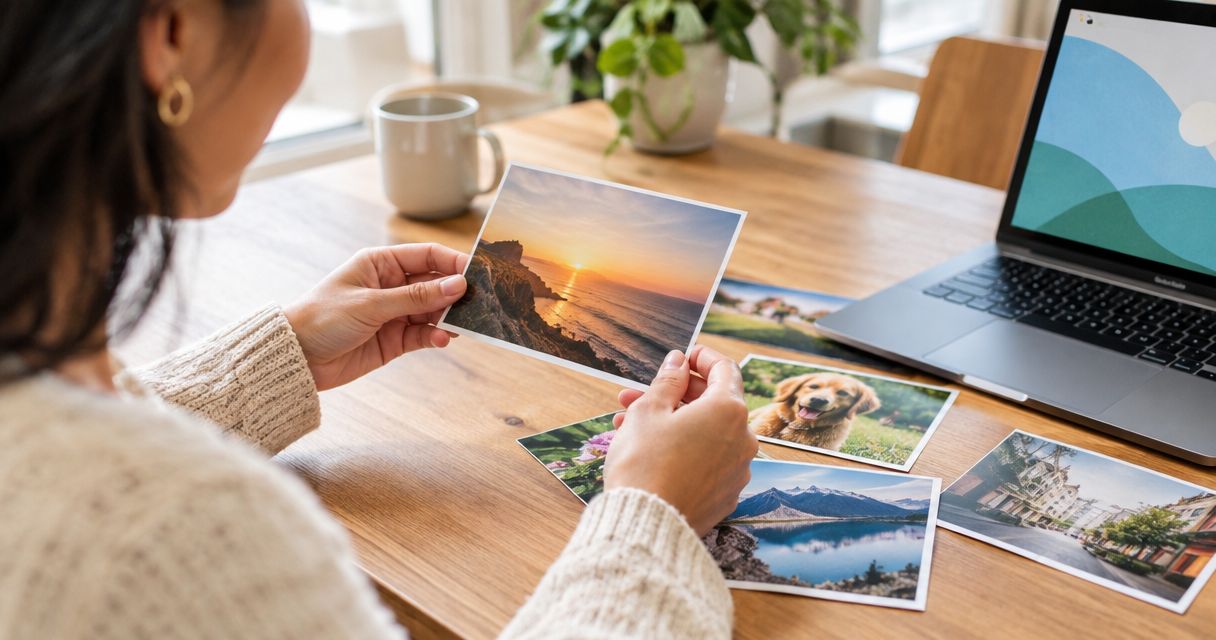
Yes—free prints without app downloads are possible when a photo-printing offer explicitly accepts orders through a web browser. In 2026, check the offer’s website-ordering terms before choosing your pictures: a website checkout does not automatically include an app-only promotion. Also check delivery charges and optional extras, because free prints do not necessarily mean a free order.
TL;DR
- Free prints without app downloads require an offer that explicitly accepts browser orders.
- Check delivery charges, eligible print formats and account requirements before uploading your photo prints.
- A mobile browser avoids installing a printing app; a desktop browser gives you more room to inspect crops.
- Pixaprints is for consumers who want personalised photo gifts made from their own pictures.
Can you order free photo prints without downloading an app?
Yes, provided the offer applies to browser orders—not just purchases made inside an app. You need a website that lets you select photographs, configure your prints and complete checkout without redirecting you to an app installation.
Start with the conditions rather than the upload button. The distinction between an eligible print and the complete order is explained further in whether free photo prints in the UK are actually free.
Use these steps to establish whether a browser route meets your needs:
- Read the offer. Look for wording that explicitly includes website orders or excludes app-only redemption.
- Check eligibility. Confirm any account, customer-status or redemption requirements before uploading.
- Check the format. Make sure the included print format suits your photographs and intended display.
- Review the basket. Confirm that the offer has applied and inspect delivery charges and selected extras.
- Complete checkout. Continue only when the order summary matches what you intended to buy.
A browser order is not the same as an account-free order. You can avoid installing software while still needing to register or sign in.
Why this matters
Searching for free photo prints in 2026 brings together two different questions: whether you can order on the web, and whether a particular promotion applies there. Treat those as separate checks. A printer accepting website orders does not establish that every promotion works on its website.
You also want the pictures to suit their purpose. A photograph for a family album needs a different crop from one intended for a narrow frame, even when both start as the same phone image.
Sorting out eligibility first saves you from building a basket around the wrong offer. Checking your photographs next helps you avoid ordering a technically eligible print that cuts someone out of the picture.
Mobile browser or desktop browser: which should you use?
Best for photos already on your phone: a mobile browser. Best for careful side-by-side checking: a desktop browser. Neither choice establishes whether an offer applies; that still depends on its terms.
| Ordering route | Best for | Main advantage | Main drawback | What to check |
|---|---|---|---|---|
| Mobile browser | Pictures stored on your phone | You can select local photographs without first moving them to a computer | A smaller screen gives you less room to inspect details | The website supports the complete ordering process on your device |
| Desktop browser | Pictures stored on a computer and detailed crop checks | A larger screen makes previews easier to examine | Phone photographs need to be accessible on the computer | You are uploading the intended files, not reduced copies |
Choose the device that already holds your original photographs unless another screen makes the editing easier. There is no reason to move an entire photo library just to place a small order.
If you want a phone-first walkthrough, follow the guide to ordering photo prints straight from your phone. Keep the offer conditions beside you as you work through the order rather than assuming that the upload route determines eligibility.
Keep browser ordering separate from photo storage
Using a browser does not mean your photographs must already be stored on a website. A file-upload control can let you choose pictures stored on your device, subject to the website’s accepted files and your device’s permissions.
Likewise, avoiding a printing app does not require you to remove apps you already use to store photographs. Your task is simply to make the intended image file accessible to the browser’s file picker.
How to prepare your photographs before uploading
Start with the original photograph and keep an untouched copy. Screenshots, social-media downloads and forwarded images introduce uncertainty about resolution or previous cropping.
You do not need to edit every picture. Concentrate on whether the main subject is sharp enough, whether the framing works and whether the image is the version you actually want to keep.
Choose originals
Find the photograph in the location where you originally saved it. If a family member took the picture, ask for the original file rather than taking a screenshot of a message preview.
Look closely at faces, lettering and fine details. An image that already looks blurred when examined closely is not improved simply by sending it to a printer.
Check crops
A photograph’s shape and a print’s shape are not always the same. When an image fills a differently shaped print, part of the photograph needs to be cropped unless the ordering tool offers another way to fit it.
Pay particular attention to heads, hands and people standing near the edges. Leave space around a subject where possible, especially if the finished print will sit behind a frame opening.
Review the basket
Check the selected photographs, quantities and formats before continuing. Similar-looking images are easy to confuse, particularly when you have several versions of a family group picture.
Do not treat an upload confirmation as approval of the finished composition. The preview and the order summary answer different questions: one shows the image placement; the other records what you are ordering.
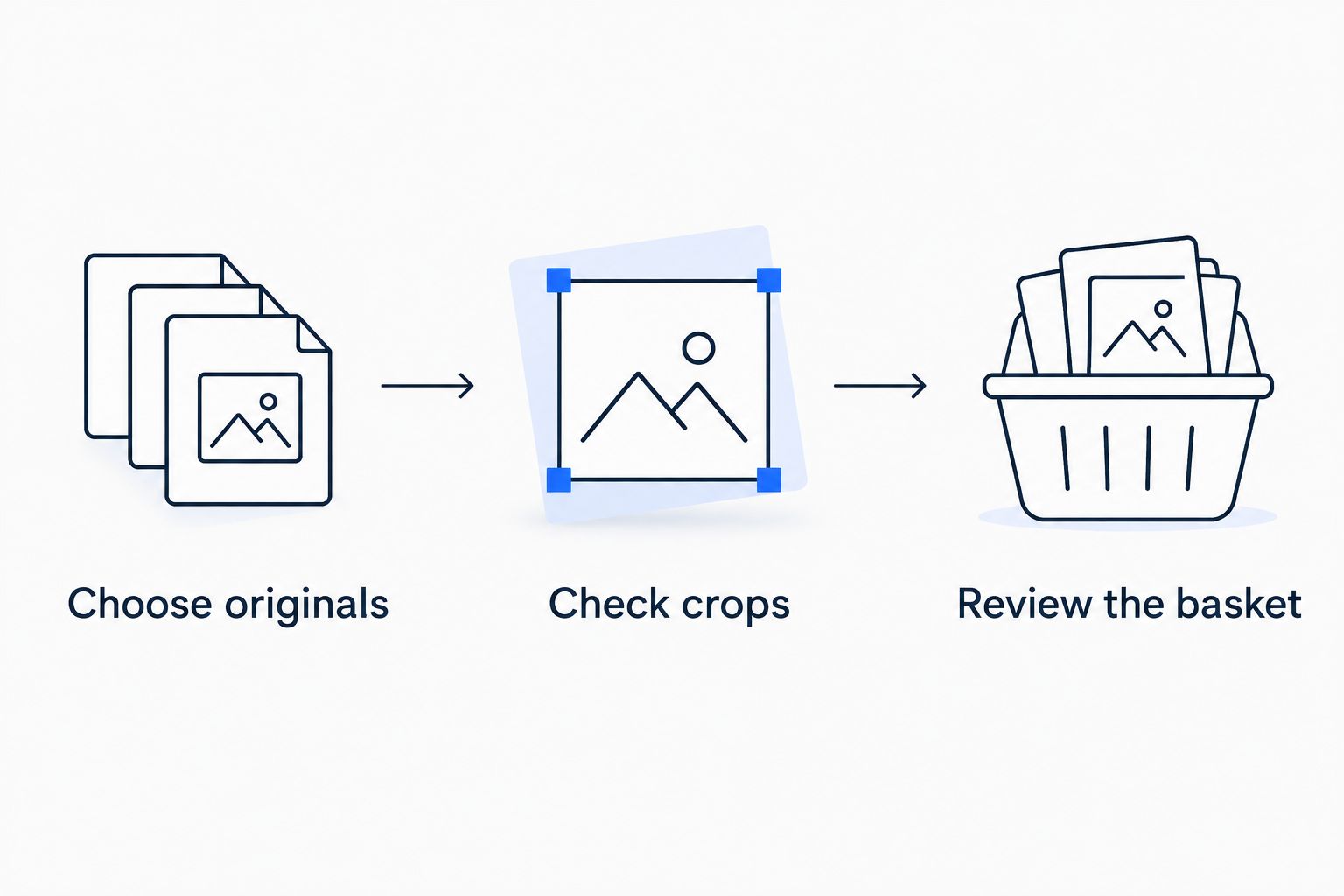
Check both the photograph and the order details before you continue.
How to place a browser order without losing track
Begin with 1 photo as a test upload. This is a practical way to see how the file picker and preview work before adding the rest of your pictures; it is not a print-quality test.
Once you understand the controls, add your remaining photographs in manageable groups. Keep the originals together so that you can identify anything missing without searching through unrelated pictures.
Open the offer in your browser
Read the terms on the website itself. A search-result description or a shared screenshot does not establish which conditions apply to your order in 2026.
If the route sends you to an app store, stop and return to the terms. Look for an explicitly supported browser route rather than assuming that a different checkout will carry the same promotion.
Select files deliberately
Use the file picker to choose your intended photographs. If a picture stored in a cloud library is not available to select, first save an accessible copy using that storage service’s own controls.
Avoid repeatedly uploading the same group because progress looks slow. Check the upload status and the selected-image list before trying again, so you do not accidentally add duplicates.
Inspect the previews
Check each different composition, not just the first picture. A landscape group photograph and a portrait close-up need separate attention even when they share a print format.
Use 2 preview checks: first inspect the whole composition, then look closely at the main subject. Check image-quality warnings before approving the layout.
Confirm the order details
Review the delivery address, selected quantities, print format and any extras. Then check that the offer is reflected in the basket before submitting payment details or confirming the purchase.
Keep the confirmation after ordering. It gives you a record of the order details to refer to if you need help later.
Why browser-order eligibility varies
The terms attached to the individual offer decide whether you can use it without an app. For a 2026 order, read the current conditions rather than relying on a previous experience or someone else’s old recommendation.
These are the factors to check:
- Ordering channel: does the offer explicitly apply to the website, or does it require an app?
- Customer eligibility: does redemption depend on being a new customer, signing in or meeting another stated condition?
- Included format: does the offer cover the print format you have selected?
- Redemption conditions: is there a stated limit, qualifying step or code you need to apply?
- Order extras: have you selected delivery, upgrades or additional items that sit outside the offer?
These checks are not reasons to reject browser ordering. They are how you establish whether a particular route delivers what you expected.
Keep 3 final checks together before confirming: offer eligibility, image placement and order details. Passing one does not replace the others.
What if the website keeps asking you to install an app?
An installation prompt and an app-only offer are different things. Read the offer conditions to establish whether installing the app is required for redemption, rather than guessing from the prompt alone.
If the terms explicitly require an app, skip that offer when avoiding downloads is your priority. Do not spend time building a web basket in the expectation that an app-only benefit will transfer.
If browser ordering is supported but a page is not working, check the website’s help guidance. Confirm that your browser is current and that the selected file meets the site’s stated requirements before attempting another upload.
Avoid changing several things at once. Trying a different file and a different device simultaneously makes it harder to identify what resolved the problem.
Can I order from my phone without installing anything?
Yes, when the printer supports mobile-browser ordering and the offer accepts website orders. Your phone needs access to the photographs and a browser that works with the ordering page.
Start on the website rather than following an installation prompt automatically. If the terms require an app, using a phone browser does not remove that requirement.
Does ordering without an app mean I do not need an account?
No—browser access and account requirements are separate. A website can accept uploads through your browser while requiring you to register or sign in before checkout.
Check this before selecting a large batch of photographs. If you prefer not to create an account, look for an explicitly stated guest-checkout option rather than assuming one exists.
Is the simplest offer always the best choice?
No—the right choice is the one that fits your photographs and has clear order terms. In 2026, compare the complete ordering conditions rather than choosing from the word free alone.
If your priority is turning personal pictures into keepsakes, Pixaprints offers personalised photo printing and photo gifts. That is a separate consideration from whether a specific free-print offer accepts browser orders; check each offer on its own terms.
FAQ
Can I get free prints without app downloads in the UK?
Yes, if an offer explicitly accepts browser orders. Check eligibility and delivery terms before uploading, because website ordering does not automatically include app-only promotions.
Do I need a computer to order photo prints without an app?
No, a phone browser is sufficient when the website supports mobile ordering. A computer gives you more screen space for checking previews.
Does free photo printing include delivery?
Free photo printing does not establish that delivery is included. Read the offer terms and inspect the complete basket before confirming your order.
Can I upload photos straight from my phone gallery?
You can select gallery photographs when the website’s upload control and your device permissions support it. Check that you choose the intended original files.
Why does a photo-printing website send me to an app store?
An app-store redirect offers an installation route; the offer terms establish whether installation is required. Look for an explicitly supported browser route before continuing.
Will ordering through a browser make my prints less sharp?
Browser ordering alone does not determine print sharpness. Check the source image, selected print dimensions, cropping and any quality warnings in the ordering tool.
Can I order without creating an account?
You can order without an account only where the website explicitly supports guest checkout. Avoiding an app does not remove a website’s sign-in requirements.
One last thing
A successful upload does not mean a successful crop. Before placing your 2026 order, check the photograph with the least spare space around its subject—not just your favourite picture.
That tight group shot is where an unnoticed crop can remove someone at the edge. Give it a final look, then check the offer and basket together. You want the right memories on paper, with no uncertainty about what you have ordered.