
Can you turn a phone photo into a polaroid-style print?
· 12 min read
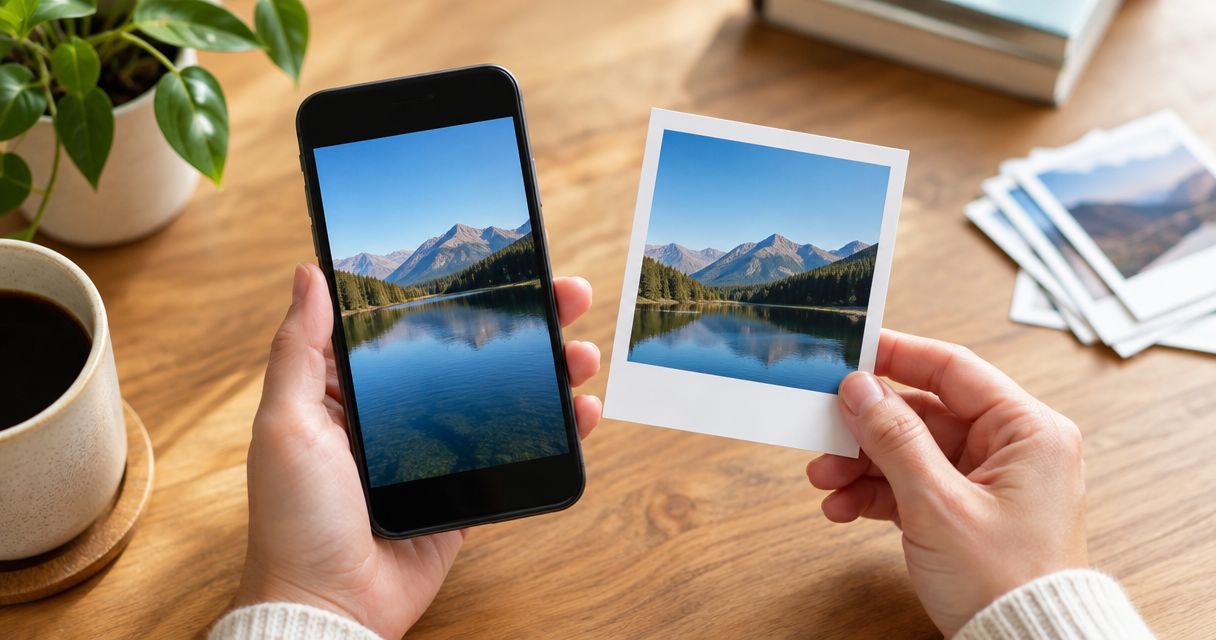
Yes, you can turn a phone photo into a Polaroid-style print by placing your image inside a white border, leaving a deeper border underneath, and printing the finished layout. A bordered photo print recreates the look, not the instant-film process; start with the original photo file and check the crop before printing.
TL;DR
- Can you turn a phone photo into a polaroid print? Yes: use your original image and a white-bordered layout.
- Polaroid-style photo prints recreate the bordered look; they are not the same as genuine instant-film photographs.
- Crop before adding the border, and keep faces clear of the image edges.
- Pixaprints suits people turning personal phone photos into personalised photo gifts; check the available format before ordering.
Why this matters
Your favourite phone photo does not need to have been taken on an instant camera to look good in a retro-style display. The important choices are the image, its crop and the white space around it—not the camera you used.
For a 2026 printing project, decide whether you want the familiar appearance or an actual instant-film photograph. Those are different results. If you want help with the upload stage, the guide to ordering photo prints straight from your phone covers that part of the process.
Can you turn a phone photo into a polaroid print?
Yes: a phone photo can become a Polaroid-style print without an instant camera. Prepare a bordered layout digitally, then print it yourself or use a printing service that accepts the finished artwork in a suitable format.
The distinction is in how the picture is produced. A conventional photo print reproduces your digital image on paper. Genuine instant film creates the photograph through its own chemical process. Adding a white frame to a phone image does not turn ordinary photo paper into instant film.
Choose your route by the result you want:
| Route | Best for | Main advantage | Main limitation |
|---|---|---|---|
| Print a bordered layout at home | Hands-on scrapbooking and layout experiments | You control the artwork and can inspect a trial print | You must manage paper, printer settings and trimming |
| Send a bordered layout to a photo-printing service | Printing prepared images without a home printer | You can prepare the design on your phone or computer | The service must accept your file and preserve the border |
| Use a compatible instant-photo printer | Producing an instant-film photograph from a digital image | A supported device can print a phone image onto its compatible film | You need suitable hardware, film and a supported connection |
For a 2026 memory wall, scrapbook or gift, the bordered-paper route gives you the retro appearance. Choose an instant-photo printer only when the film itself is part of what you want. Check the device's documentation rather than assuming every portable photo printer uses instant film.
How do you make a phone photo look like a Polaroid-style print?
Work on the photograph first and the border second. That order keeps you from building a lovely frame around a crop that cuts off somebody's face.
1. Choose the original
Open the original image in your phone's photo library, or download the original from wherever you stored it. Avoid using a screenshot of a social-media post when the camera file is available: a screenshot records the displayed image rather than preserving the original photograph.
Zoom in to check the subject. Look for sharp eyes, visible facial detail and a background that does not distract from the memory. A meaningful picture does not need perfect composition, but motion blur remains visible when you print it.
2. Set the crop
A square image area uses a 1:1 aspect ratio. Try that crop before adding any white space, then check whether the people and details you care about still fit.
Keep faces, hands and important objects away from the crop boundary. If a square removes too much, retain a rectangular image within a white frame instead. The retro feel comes from the overall layout; you do not need to sacrifice the photograph to achieve it.
3. Adjust the image
Make small adjustments to brightness, colour and contrast. Check the photograph with your screen at a comfortable brightness rather than turned up to its brightest setting.
A faded filter is optional. A white border creates the recognisable style; heavy colour effects are not required. Keep skin tones believable and avoid brightening the image until pale details disappear.
4. Add the border
Place the cropped photograph on a white canvas. Leave white space around the sides and top, with a deeper area beneath the image for the familiar instant-photo appearance.
Keep the border proportions consistent across a set. If you want a caption, put it in the lower white area rather than across the photograph. For a 2026 holiday collection, a place name or short memory can be more useful than a long description.
5. Export and preview
Save the finished layout as an image file accepted by your chosen printer or printing service. Keep a separate copy of the original photograph so you can change the design later without rebuilding it from an already edited export.
Preview the entire layout, not just the picture inside it. Check that the white frame remains visible and that an automatic crop has not enlarged the photograph to fill the paper.
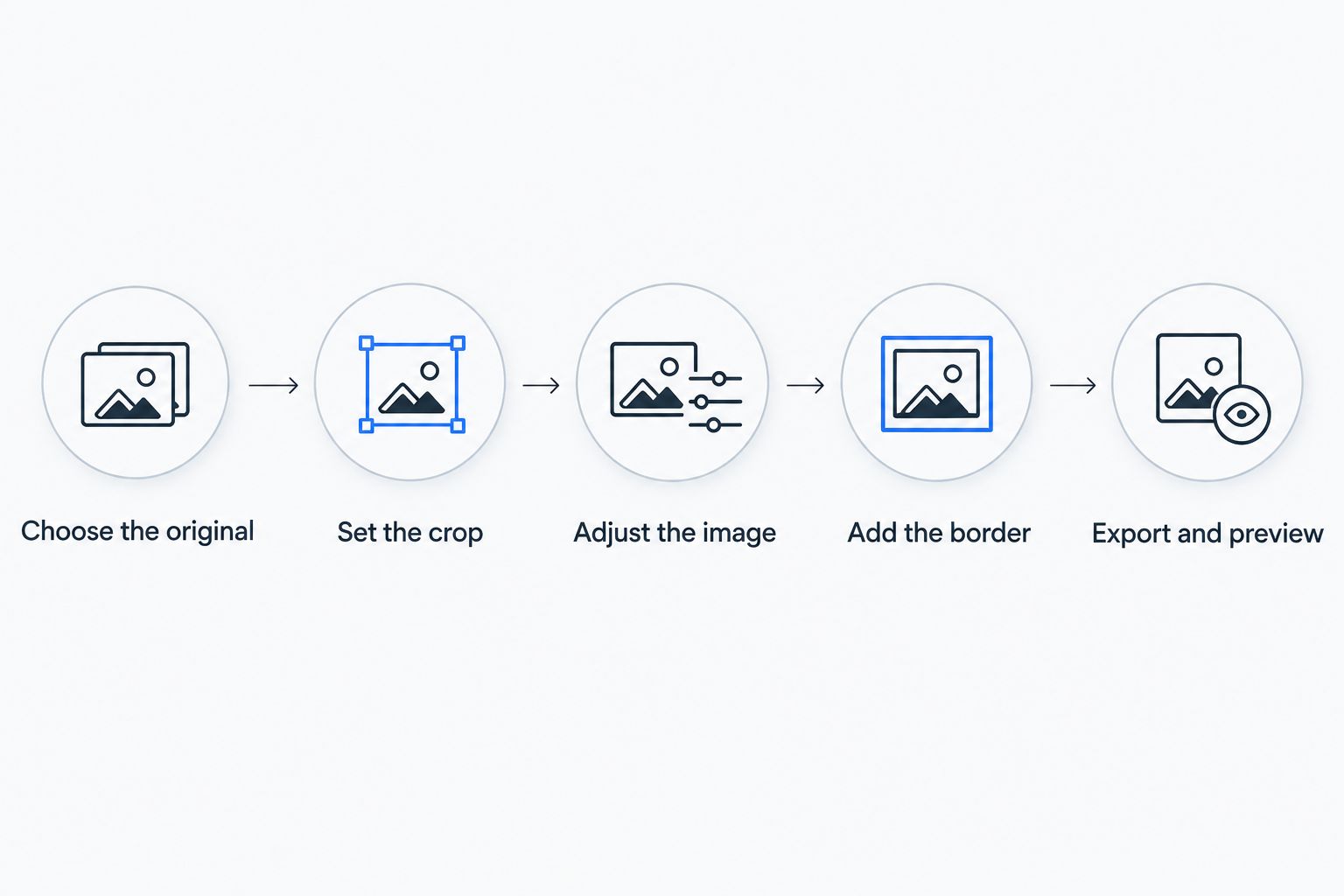
Finish the crop before adding the white border.
What makes a phone photo suitable for printing?
The file's pixel dimensions matter more than how large it looks on your phone screen. A small image can fill a screen yet contain too little detail for the print size you have chosen.
A common high-quality preparation target is 300 pixels per inch, although the required resolution depends on the printer and viewing distance. At that resolution, a 4 × 6 inch image area needs 1,200 × 1,800 pixels. These are preparation figures, not a specification for any particular printing service.
When your artwork includes a border, the whole exported layout has pixel dimensions, but only part of it contains the photograph. Check both the original image and the final design. Making the canvas larger does not restore detail missing from the source image.
Before printing, check:
- File detail: inspect the photograph at a larger view for blur and blocky edges.
- Crop: confirm that a square or rectangular layout keeps the full subject.
- Border: ensure the lower white area and side margins survive the preview.
- Colour: check for an overly dark face or washed-out highlights.
- Export: use the file type and dimensions accepted by your chosen printing route.
For your 2026 print collection, use the original camera files wherever possible. Increasing a file's pixel dimensions changes its size; it does not recreate the original detail of an out-of-focus picture.
Why the finished Polaroid-style print varies
The same photograph can look different after cropping, editing and printing. These choices explain the differences without needing a different phone.
- Source image: an original file retains the camera image, while a screenshot or compressed copy can contain less detail.
- Image shape: a square crop removes different parts of a photograph than a rectangular crop.
- Border proportions: more white space makes the picture itself smaller within the same overall print dimensions.
- Editing: strong contrast, colour shifts and faded filters change the appearance of the memory.
- Printing route: home printing, a photo service and compatible instant film use different materials and processes.
- Preview settings: a fill or crop setting can remove a border that was present in your exported artwork.
Approve the complete bordered layout, not just the photograph. If the preview shows the image filling the paper edge to edge, stop and adjust the settings before proceeding.
How do you keep a set of retro prints looking consistent?
Use one layout for the collection and change the photograph inside it. Keep the outer dimensions, white border and caption placement the same, even when the pictures come from different occasions.
Consistency does not mean every photo needs an identical colour filter. A naturally warm sunset and a cool indoor portrait can sit together when the frames match. Start by balancing obvious differences in brightness, then leave each picture's character intact.
For a 2026 travel display, decide whether the captions will name places, describe moments or remain blank. Mixing long captions with empty borders can look accidental unless that contrast is part of your design.
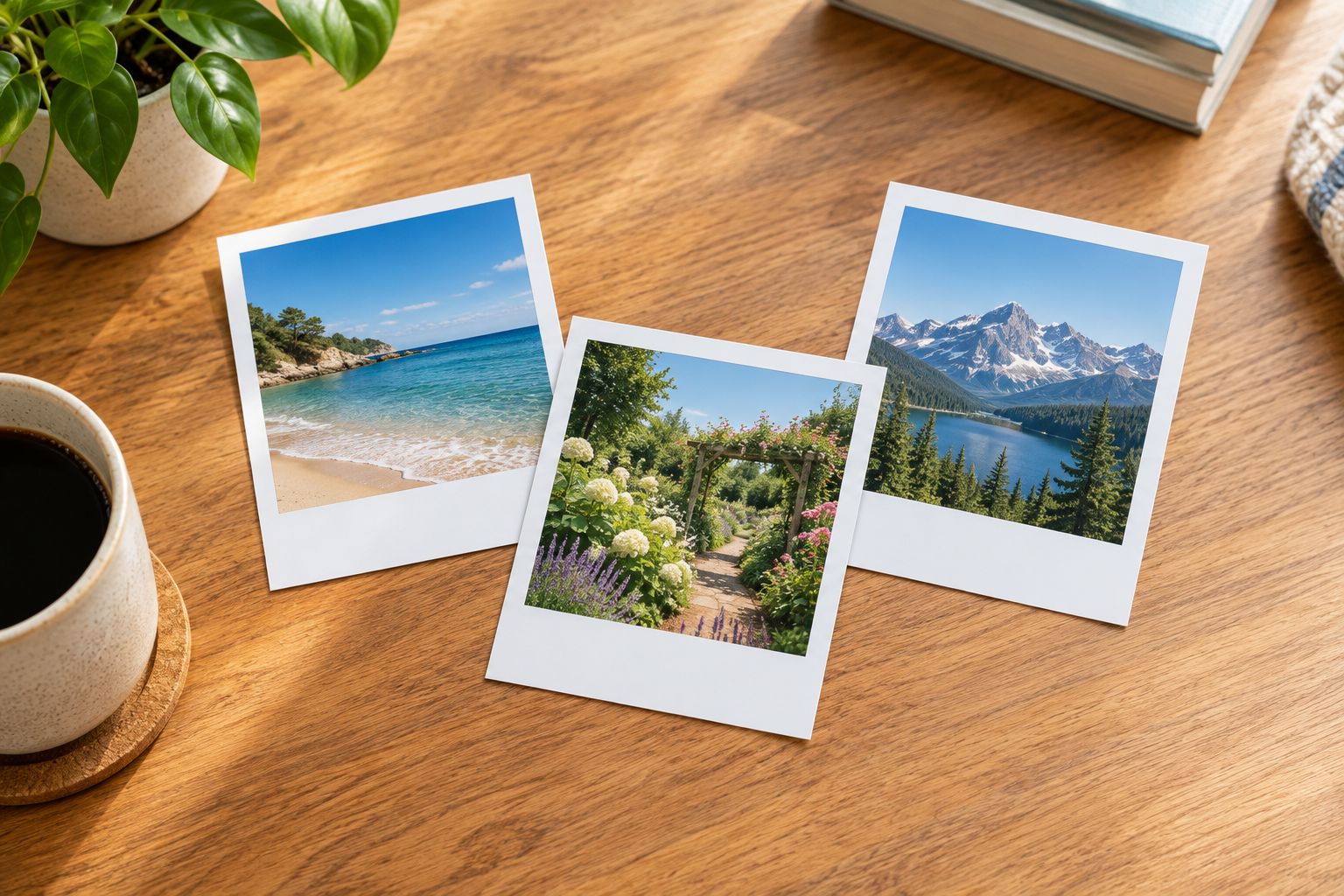
Matching borders bring different photographs together without forcing the same filter.
Set aside a finished example as your reference layout. Compare each new image against it before exporting, especially when you switch between portrait and landscape originals.
Do you need an instant camera to print a phone photo?
No, you do not need an instant camera for a Polaroid-style paper print. You need a suitable photo file, a bordered design and a printing route that preserves the finished layout.
An instant camera is not part of the ordinary digital-to-paper workflow. If you want actual instant film from a phone image, investigate a compatible instant-photo printer and confirm that it supports your phone and chosen film.
Can you print a rectangular phone photo without cropping it square?
Yes, you can keep a rectangular phone photo inside a white-bordered layout. A square image is a design choice, not a requirement for creating a retro-style paper print.
Keep the rectangle when a square would remove people, scenery or an important detail. Check the outer print dimensions separately from the image shape so that the finished artwork fits your intended display.
Can you add writing underneath the photograph?
Yes, you can add a caption in the deeper lower border before printing. Keep it separate from the photograph and check that it remains legible in the final-size preview.
Use a place, name or short message rather than trying to fit the whole story into the border. If you plan to write by hand afterwards, check that your chosen pen works on the finished paper surface first.
Where do personalised photo gifts fit in?
Pixaprints suits people who want personalised photo gifts made from their own pictures. The UK-based online printing service lets you upload personal photos for products including canvas prints, calendars, photo books, mugs and phone cases.
That is useful when your goal is to relive a memory in another format rather than reproduce an instant photograph. Keep the original image available, and check the current product format before preparing artwork: a bordered layout designed for paper is not automatically suitable for another photo gift.
FAQ
Can I turn any phone photo into a Polaroid-style print?
You can place a phone photo in a Polaroid-style layout, but the printed detail depends on the original file and chosen size. Start with the original photograph and check whether the crop keeps your subject intact.
Is a Polaroid-style print the same as a real Polaroid photograph?
No, a Polaroid-style paper print recreates the white-bordered appearance rather than the instant-film process. If you want an instant-film photograph from a digital file, check a compatible instant-photo printer.
Do I need an app to add the white border?
You need an editing tool that can place your photo on a larger white canvas, not necessarily a dedicated instant-photo app. Check that it exports the complete border without adding an unwanted watermark.
What resolution should I use for a phone photo print?
A common high-quality preparation target is 300 pixels per inch. At that resolution, a 4 × 6 inch image area needs 1,200 × 1,800 pixels; confirm the requirements of your chosen printer or service.
Why has the white border disappeared from my print preview?
An automatic fill or crop setting can remove a white border by enlarging the artwork to cover the print area. Preview the whole exported design and choose a setting that preserves it.
Can I use a screenshot instead of the original photo?
You can print a screenshot, but use the original photo when it is available. A screenshot captures the displayed image rather than retaining the original camera file.
Can Pixaprints turn my phone pictures into personalised photo gifts?
Yes, Pixaprints lets consumers upload personal photos to create personalised photo gifts, including canvas prints, calendars, photo books, mugs and phone cases. Check the current product format before designing a bordered layout for it.
One last thing
The border is part of your artwork, not a promise that the printer will add one. Save the complete design with its white space included, then check the final preview for unwanted cropping.
Keep a border-free copy as well. The same memory can then become a different print or gift without asking you to recover the original photograph from a finished design.