
Personalised acrylic photo blocks for baby announcements
· 12 min read
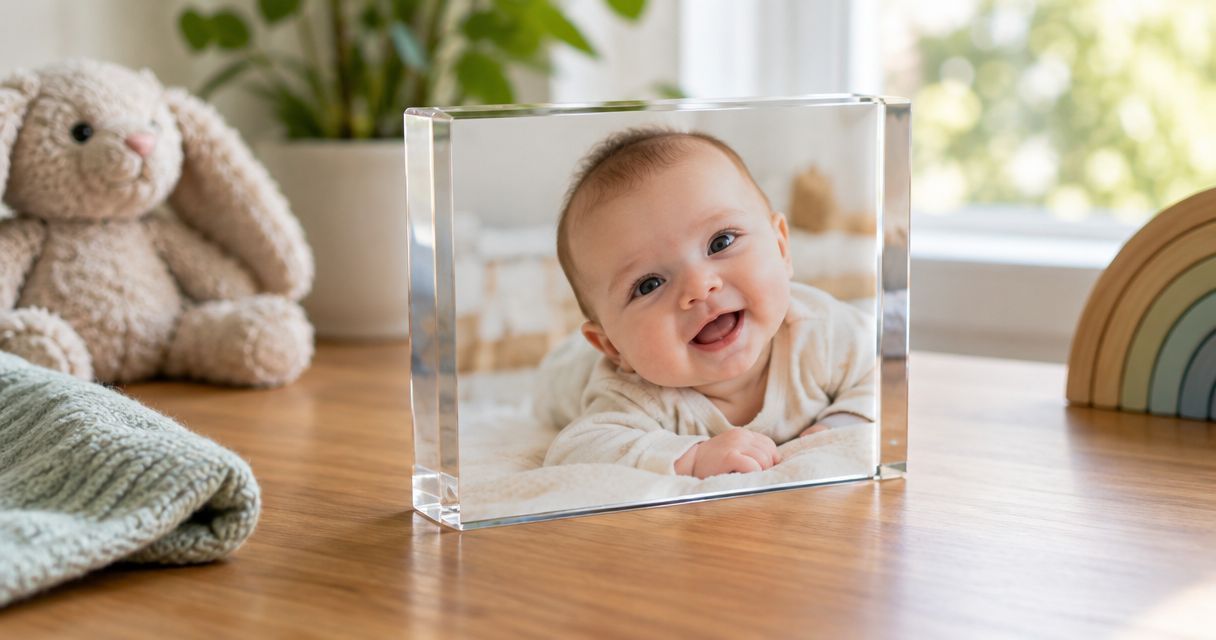
New parents’ acrylic photo block baby announcement is a personalised photo display that shares your baby’s arrival and preserves the moment as a keepsake. Choose a clear photograph, keep the wording short and check every birth detail before creating your finished design.
TL;DR
- An acrylic photo block baby announcement works best with a clear newborn portrait and short, readable wording.
- Pixaprints suits families turning their own pictures into personalised photo gifts.
- Choose a portrait-led birth announcement for a keepsake; choose text-led artwork when the message matters most.
- Confirm the baby's name, birth date and family sharing preferences before submitting your design.
Why photo announcements matter for new parents
A baby announcement has two jobs: sharing your news now and keeping that memory meaningful later. An acrylic photo block puts the photograph at the centre, so the expression, crop and wording need to work together.
For new parents, the challenge is choosing something personal without turning a happy task into another long project. You do not need a staged photoshoot or a complicated collage. Start with a picture you love; these newborn photography ideas you can try safely at home offer a useful starting point.
For a birth announcement, choose the photograph first and build the message around it. A favourite image deserves more room than a long list of details.
How to create your baby announcement
1. Decide what news you want to share
A pregnancy reveal and a birth announcement need different information. For a pregnancy reveal, you might choose an expectant-parent photograph or a scan image. For a birth announcement, a newborn portrait and confirmed arrival details give the design its purpose.
Decide who will receive the keepsake before choosing the wording. Grandparents might appreciate a personal dedication, while a display for your own home can focus entirely on your baby’s name and photograph.
If you are announcing a baby born in 2026, use the actual birth date rather than the date you make the design. Check whether the parents want the announcement shared privately before anyone posts a photograph online.
Keep your brief small enough to explain in a sentence. For example, you might want a portrait-led keepsake for grandparents, rather than a design that tries to tell the whole birth story.
- Choose pregnancy news or a confirmed birth announcement.
- Identify the recipient and where the keepsake will sit.
- Agree which personal details you want to include.
- Ask the parents before making an announcement as a surprise.
- Keep a private gift separate from any public sharing plans.
2. Select a photograph that survives the crop
Start with the original photograph saved on your phone or camera, rather than a screenshot of a social post. Open it at a larger view and check the baby’s face, especially the eyes, eyelashes and outline against the background.
Shortlist 3 candidate photos before editing. This gives you alternatives if your favourite image loses an important detail when cropped. A beautiful wide photograph does not automatically make a strong compact portrait.
Leave breathing room around the head and hands. If your photograph includes a sibling, check that both children remain comfortably inside the crop rather than squeezing one face against an edge.
Take a fresh photograph only if your baby is comfortable and supported. Never compromise a safe position to copy a decorative pose, and keep hard display objects away from the baby during photography.
- Use the original image file wherever possible.
- Reject pictures with visible motion blur across the face.
- Check the proposed crop before adding any wording.
- Leave space beside the subject if you want text.
- Choose natural expressions over a complicated setup.
3. Choose a layout that gives the photograph room
Try the layout manually first using your phone’s crop tool and a simple sketch on paper. Mark where the image ends and where the wording belongs. You can spot a crowded design without learning a new design tool.
For an acrylic photo block baby announcement, start with 1 main photograph. A single image makes it easier to keep the face prominent and avoid tiny supporting pictures. Add another photograph only when it contributes something distinct, such as a sibling meeting the baby.
Pixaprints suits families who want personalised photo gifts made from their own pictures. If you explore Pixaprints for a related keepsake, use your prepared image to keep the creation process focused; for an acrylic block specifically, confirm the product format, artwork requirements and personalisation choices before preparing final files.
Do not assume every printing service supports editable text, transparent areas or the same crop. Build around the requirements of the particular product you choose.
- Start with a portrait-led layout for a newborn keepsake.
- Reserve an uncluttered area for names and dates.
- Avoid putting lettering across eyes, fingers or facial details.
- Check the required artwork shape before finalising your crop.
- Remove decoration that competes with the photograph.
4. Write a message that still reads clearly
Draft the wording in a note before placing it on the image. Start with the baby’s name and birth date, then decide whether anything else adds meaning. You do not need to include every detail from the birth record.
Aim for 2 short lines as your first draft, not as a printing requirement. For a baby born in 2026, a name on the first line and the full birth date beneath it creates a simple starting point. Expand only if the layout remains easy to read.
A short greeting such as Welcome to the family can sit above the name if there is room. If the photo already feels intimate and expressive, the name and date can be enough.
For twins or multiples, make the relationship between names and faces clear. Keep the order consistent throughout your draft, proof and any accompanying gift message.
- Copy names from a parent-approved written source.
- Spell out the month if a numerical date feels ambiguous.
- Include birth weight or time only if the parents want them shared.
- Keep punctuation and capitalisation consistent.
- Check the wording without relying on the photograph for context.
5. Proof the artwork away from the editing screen
Save 1 final proof and inspect it separately from the design process. Looking at the finished composition without editing controls helps you concentrate on what the recipient will actually see.
Ask another trusted adult to check names and dates. A familiar mistake is easy to overlook when you have been moving the same text around repeatedly. If the announcement is a gift, ask a parent to approve the personal details without revealing the entire presentation.
Check the full date carefully. A design created in 2026 still needs the baby’s actual birth year, not a year copied from an old draft or a saved example.
Pay attention to edges as well as spelling. A face that looks centred on your phone can feel awkward if the final crop cuts close to a cheek or removes part of a sibling’s head.
- Read every name aloud while checking the spelling.
- Compare the birth details with the approved source.
- Inspect all edges of the final crop.
- Check that text stands apart from the background.
- Recheck the complete design after your last change.
6. Plan the reveal and the display
Think about how the recipient will first see the announcement. A grandparent opening a keepsake in person needs little extra explanation; a posted gift benefits from a note that makes clear who it is from.
Choose the intended display spot before committing to a format. A desk, shelf and busy mantelpiece offer different amounts of clear space. Check the product’s stated dimensions and display requirements rather than judging its scale from a close-up photograph.
A 2026 birth announcement can remain a family keepsake long after the first round of congratulations. Keep the design centred on the baby rather than adding a seasonal message that only suits the week you send it.
Treat the finished block as a display object, not a baby toy. Keep it out of reach and follow the supplier’s handling and care instructions.
- Choose a stable display surface away from the cot.
- Check dimensions against the available space.
- Add a separate note for a longer family message.
- Agree when recipients can share photographs of the announcement.
- Save the original photograph and approved artwork together.
Compare baby announcement layouts
Choose the layout by the story you want to tell, not by how much you can fit in. These are design approaches rather than claims about any particular supplier’s templates. Confirm that your chosen product supports the layout before preparing the final artwork.
| Option | Best for | Main advantage | Key limitation |
|---|---|---|---|
| Portrait-led layout | A newborn keepsake for parents or grandparents | Gives the baby's face the most space | Leaves less room for a long message |
| Photo with a text panel | Sharing a name and arrival details clearly | Separates wording from a busy photograph | Reduces the area available for the image |
| Family portrait layout | Including parents or older siblings | Shows the arrival as a shared family moment | Individual faces become smaller within the crop |
| Detail photograph | A private announcement using hands or feet | Shares the moment without a full-face portrait | Does not show the baby's expression |
| Small collage | Showing distinct moments from the arrival | Includes more of the family story | Can feel crowded in a compact display |
A portrait-led design is the strongest starting point when the keepsake is about meeting the baby. A text panel is the clearer choice when the announcement details carry equal importance. Neither approach fixes a blurred photograph or an unsuitable crop.
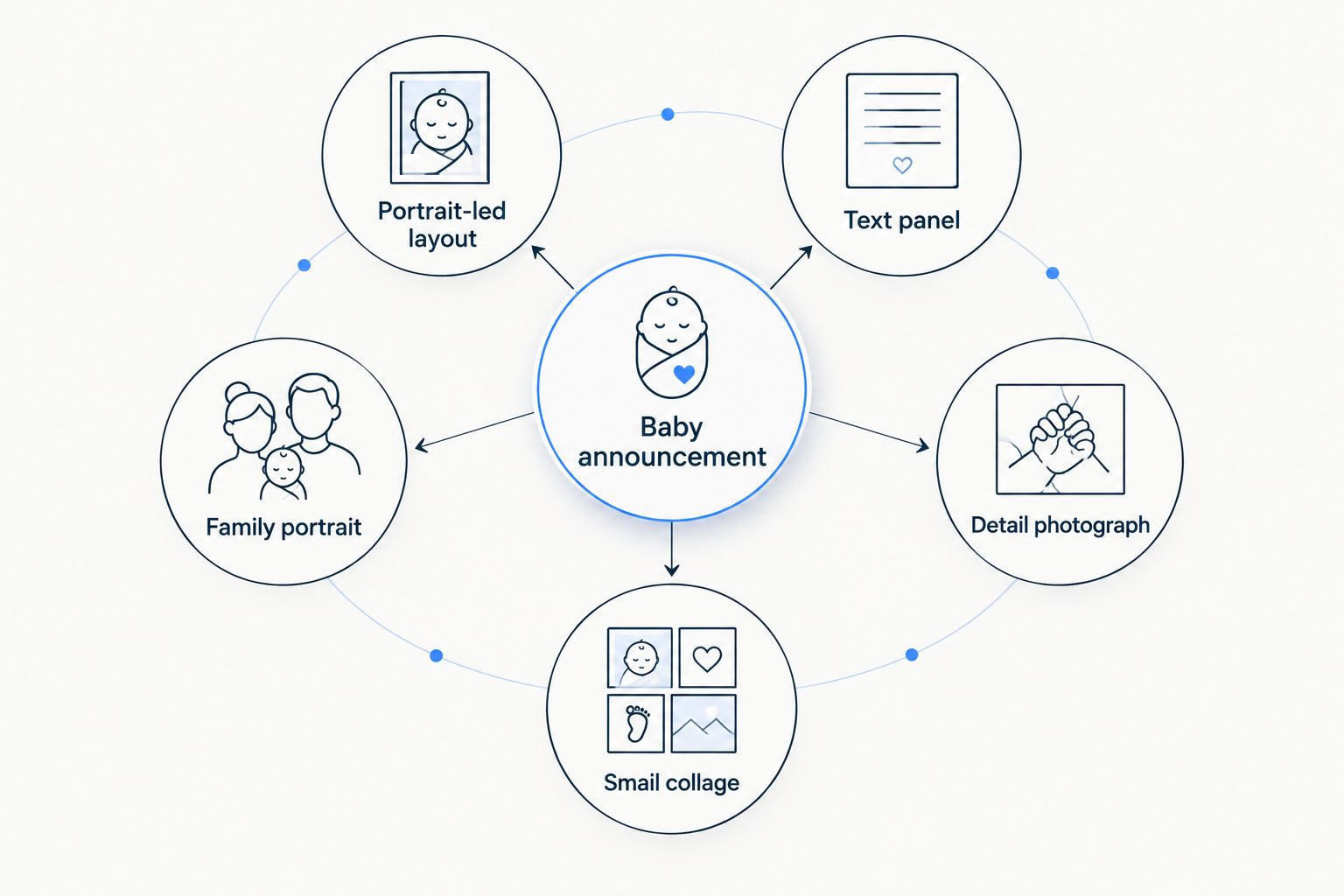
Choose the layout around the photograph and the message you want to share.
Common mistakes new parents make
Adding every birth detail to the front
A name, date, time, weight, greeting and dedication can overwhelm the photograph. Keep the front focused; put the longer story in a separate note. Include personal information because the family wants it there, not because an example design includes it.
Choosing a layout before checking the photograph
A favourite template cannot create missing space around a tightly cropped face. Try the image in the required shape first. If the crop feels cramped, change the picture or the layout rather than shrinking everything to make it fit.
Ordering a surprise without checking the announcement plan
Parents might want to tell close relatives before sharing the news more widely. Ask about timing and wording before creating a gift that announces a name or arrival. A thoughtful keepsake should not reveal private news ahead of the family.
Treating the display as a photography prop
Keep the block for the finished display, not beside an unsupported newborn during a staged photograph. Take the baby’s picture in a safe, comfortable setting and create the artwork afterwards. You do not need the finished object in the original image.
FAQ
What's the best photo for an acrylic photo block baby announcement?
A clear newborn photograph with room around the face is the strongest starting point. Choose the original file and check that the intended crop does not cut into important details.
What should I write on a baby announcement photo block?
Start with the baby's name and birth date. Add a greeting, birth time or weight only if the parents want those details included and the wording remains readable.
Can I use a phone photo for a baby announcement?
Yes, a phone photo can be suitable when the original file is sharp enough for the chosen print format. Check the supplier's image requirements and inspect the final crop before submitting it.
Is a single photo better than a collage for a newborn announcement?
A single photo is better when you want the baby's face to be the main focus. A collage suits distinct family moments, but each photograph has less space and needs a clear purpose.
Can I make an acrylic photo announcement before the baby is born?
You can plan a pregnancy announcement before the birth, but keep it separate from a confirmed birth announcement. Use wording that makes the stage clear and share scan images or personal details only with parental approval.
Does Pixaprints make personalised photo gifts for families?
Pixaprints lets consumers upload personal photos to create personalised photo gifts, including canvas prints, calendars, photo books and mugs. Check the current product information for the specific format you want before preparing your artwork.
Where should I display a baby announcement block?
Display a baby announcement block on a stable surface out of a baby's reach. Check the product's dimensions, support requirements and care instructions before choosing its permanent spot.
One last thing
Save the photograph without the announcement wording as well as the finished artwork. The clean image gives you more freedom when you want to revisit the memory later, without cropping around a date or removing text from a face.
For your 2026 announcement, create a clearly named folder containing the original image, approved wording and final proof. Whether you choose an acrylic display or another Pixaprints personalised photo gift, that small bit of organisation keeps the important part safe: your family’s picture.