
Google Photos to personalised photo book: complete 2026 workflow
· 13 min read
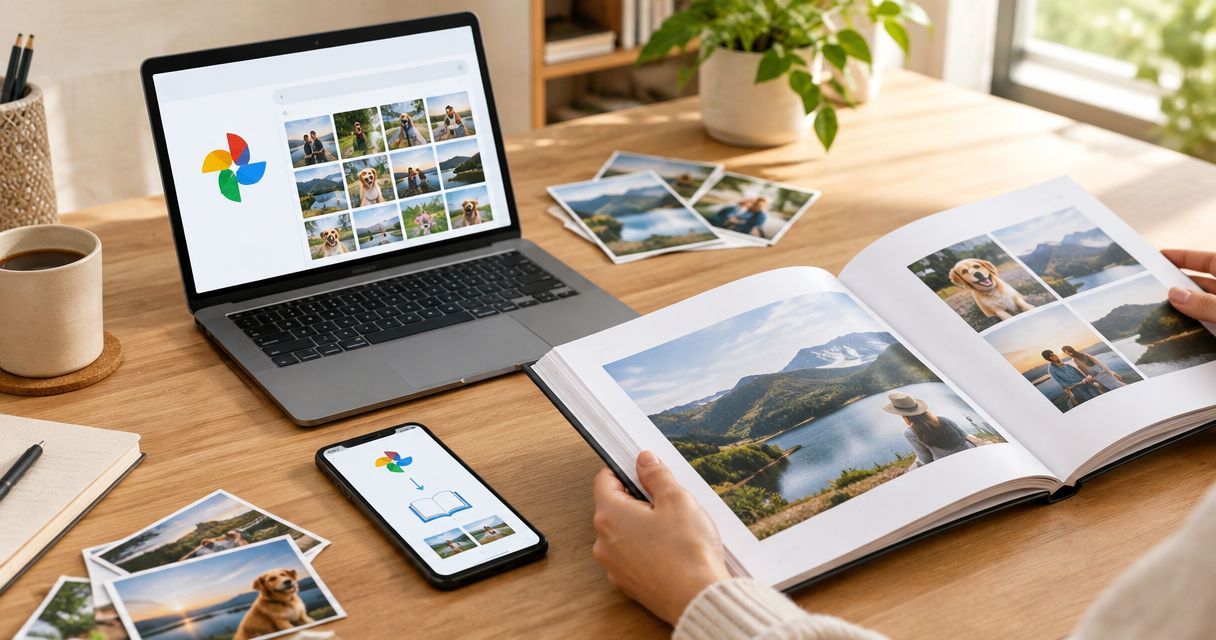
Instead of finding and saving pictures individually, use this Google Photos to photo book workflow: gather your favourites into an album, download them together, then upload the extracted images to create your personalised book. This 2026 guide takes you from a cloud collection to a checked page layout, without assuming a direct connection between Google Photos and your printing service.
TL;DR
- For Google Photos to photo book projects, download a selected album before uploading your images to the book editor.
- Pixaprints suits consumers who want to turn personal photos into a personalised photo book.
- Extract downloaded ZIP files before uploading; an album link is not an image file.
- Check photo order, image quality and page crops before submitting your finished design.
Why this matters
A photo collection and a photo book need different kinds of organisation. Google Photos helps you find moments; your book needs a beginning, a middle and an ending that make sense when someone turns the pages.
Choose the story before choosing the layout. A holiday, family reunion or collection of everyday moments gives you a useful boundary. If you are unsure which page shape will suit your pictures, start with the guide to photo book sizes and formats.
The transfer itself is straightforward, but it does not make editorial decisions for you. Downloading an album will not decide which near-identical portrait deserves a full page, or whether a panoramic landscape fits a portrait-shaped space.
Pixaprints is best for consumers turning their personal photos into a personalised photo book. Its upload-based service fits this workflow; you still need to prepare the files and check the design yourself.
Before you start
- Account and photo access: sign in to the Google account holding your pictures. Open several images at full size and confirm that you can access the photographs you want, including any contributed by family members.
- A computer and a working folder: use a desktop browser for the album download described below. Create a clearly named local folder, such as Family memories 2026, with enough storage for the downloaded archive and extracted images.
- The transfer gotcha: downloading an album produces a ZIP archive. Extract it before uploading photos; neither the ZIP nor a shared Google Photos album link replaces individual image files in a file-upload workflow.
You also need access to the printing service's photo book creation process. Check its current upload requirements before preparing your whole collection, especially if your photographs include unusual file types.
Set up your Google Photos album
An album gives your project a boundary. It also keeps you from repeatedly searching your entire library while designing pages.
- Choose a theme. Decide what the book records and who will read it. For a family yearbook, define the period as January to December 2026; for a holiday book, use the trip rather than the entire year's photographs.
- Gather the candidates. Find the relevant pictures in Google Photos and add them to a dedicated album using the album controls. Give it a recognisable name that you can reuse for your local project folder.
- Remove repeated moments. Compare similar images at full size. Keep the expression, composition or detail that tells the story most clearly, rather than adding every version of the same scene.
- Check the supporting photographs. Include places, small details and informal moments alongside portraits. A beach photograph or a handwritten birthday card can explain the occasion without a long caption.
- Review the sequence. Arrange the album into a sensible story order, but plan to check the order again after downloading. A local file list is not a dependable copy of your intended page sequence.
For a gift, think about the recipient's memories as well as your own. A photograph of a familiar kitchen might mean more than another posed group portrait.
Expected result: you have a named Google Photos album containing the pictures you intend to review for the book, rather than an unfiltered collection of everything from the event.
Choose the right download scope
A selected album and a full-library export serve different purposes. Start with the smaller scope when your aim is a single book.
| Transfer option | Best for | Advantage | Limitation |
|---|---|---|---|
| Selected Google Photos album download | A book about a defined event or theme | Keeps the working collection focused | You must select the pictures beforehand |
| Google Takeout export | Keeping a broader copy of your Google Photos library | Provides a separate export route for library data | Includes more material to sort and can include metadata files alongside images |
Use the selected-album route for a focused photo book. Google Takeout is useful for a wider export, but exporting everything adds sorting work when you already know which memories belong in the book.
Download and organise your photo files
The desktop album download is the bridge between Google Photos and an upload-based photo book editor. Work with actual files, not screenshots of the photographs.
- Open the chosen album. In Google Photos on your computer, open the album you prepared and check its contents before exporting.
- Download the album. Open the album's three-dot menu and select Download all. Let the browser finish downloading the ZIP archive before moving or opening it.
- Extract the archive. Use your computer's archive extraction function to unpack the ZIP into your project folder. Open the extracted folder and confirm that it contains the photographs themselves.
- Inspect the files. Open several images locally, including a portrait, a landscape and a favourite you intend to display prominently. Check that each opens correctly and is the photograph you expected.
- Separate working copies. Keep the downloaded images unchanged. If you crop, rotate or rename pictures for the book, make those changes to copies in a separate working folder.
Use 1 project folder as your starting point, with separate subfolders for downloaded images and edited copies. That is an organising recommendation, not a requirement imposed by the printing service.
A filename such as Beach walk 2026 helps you recognise an image, but it does not replace checking the photograph itself. File dates and names are not always a reliable guide to the sequence of your memories.
Expected result: your computer holds extracted image files that open normally, with the original download kept separate from any edits you make for the book.
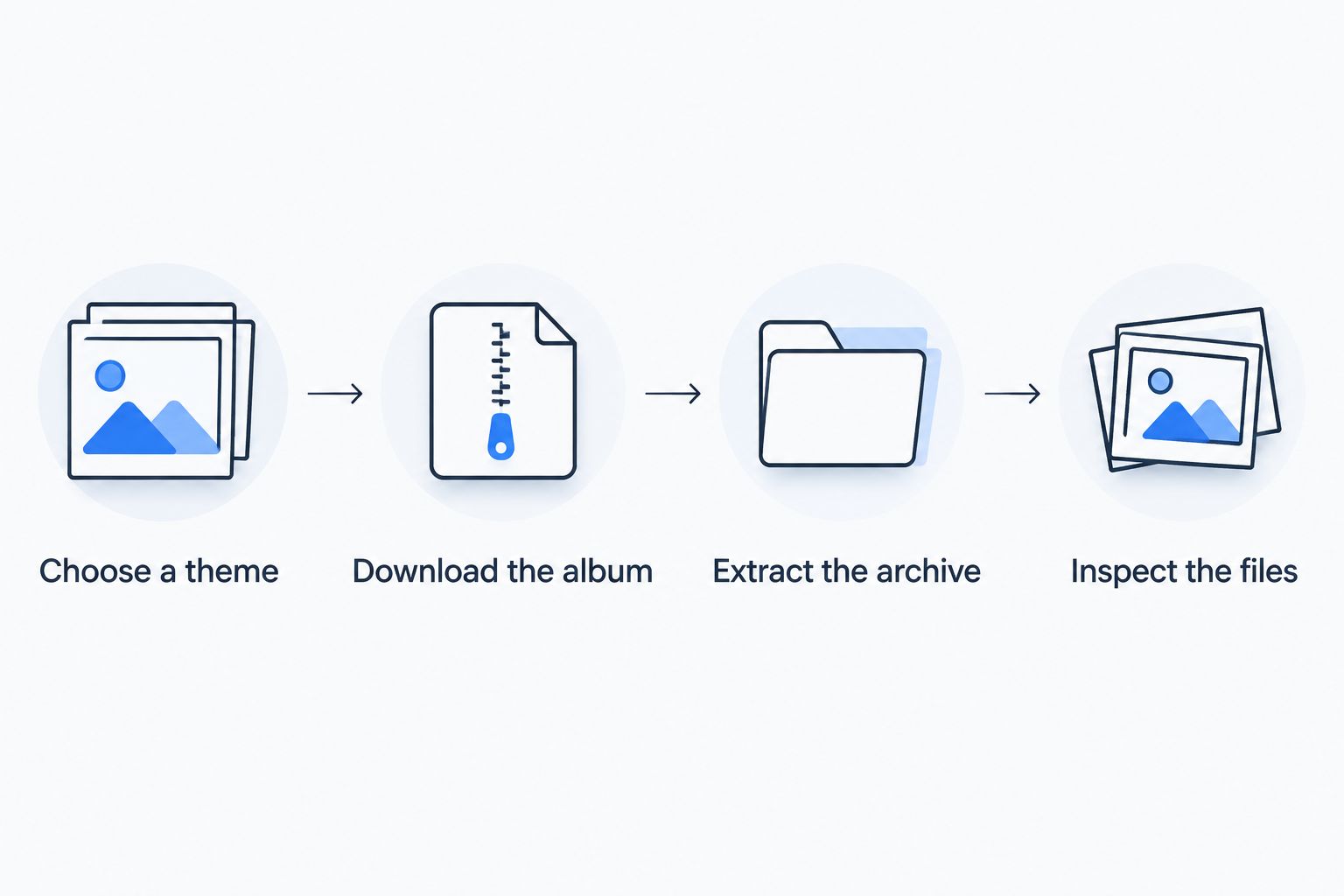
Check the extracted photographs before you begin arranging book pages.
Configure your photo book layout
Pixaprints lets consumers upload personal photographs to create photo books. This workflow uses those downloaded files; it does not depend on a Google Photos sign-in button or an automatic album import.
- Choose the book format. Consider the shapes of your strongest pictures before committing to a page layout. A portrait-heavy collection and a landscape-heavy holiday album create different cropping decisions.
- Test a small selection. Upload 3 test photos: a portrait, a landscape and an image with important detail near an edge. This checks how your files behave before you organise the complete collection.
- Upload the working collection. Select the extracted image files through the editor's upload control. Keep the browser open while the upload finishes, and confirm that the photographs appear in the project.
- Build the story. Place the opening image first, then group related moments together. Use a change of location, activity or occasion to mark a new section rather than relying on file order.
- Adjust each crop. Inspect the visible photograph inside its frame. Keep faces and important details away from page edges and the centre fold, and change the layout when a photograph needs more breathing room.
- Add captions deliberately. Include names, places or a short memory where they help the reader. Check dates against your records rather than copying them automatically from filenames.
Button names and editing controls depend on the current book editor, so follow the labels shown in your project. Do not treat a Google Photos album title as something that will automatically become the cover title.
Expected result: your project contains the intended photographs in a deliberate order, with crops and captions checked rather than accepted without review.
Give important photographs room
Not every page needs the same number of images. A favourite portrait can stand alone, while related details can share a page without competing for attention.
For a 2026 family book, let the photographs explain the year through moments rather than forcing every month into an identical layout. If you have no meaningful picture for a particular period, do not fill the gap with a weaker photograph just to maintain symmetry.
Leave visual space around busy images. A crowded family group already contains plenty to look at; extra decoration can distract from the people the book is meant to celebrate.
Check your finished book
Proofreading a photo book means checking both the words and the pictures. A correct upload can still produce a poor crop or a confusing sequence.
- Make a picture-only pass. Review every page for missing images, repeated photographs, awkward crops and visible image-quality warnings. Change the affected photograph or layout rather than ignoring a warning.
- Make a text-and-order pass. Read every caption, name and date. Check that the cover describes the contents and that the page sequence makes sense from beginning to end.
- Revisit your key pages. Inspect the cover, opening page and any photograph placed across a spread. Confirm that the design does not put an important face or detail into the fold.
- Review the final project state. Use the preview provided by the service before submission. If you make a late change, revisit the affected pages instead of assuming the earlier check still covers them.
Use 2 review passes: pictures first, then text and order. Separating the tasks makes each check easier to follow and stops an appealing photograph from distracting you from a misspelt name.
Expected result: your finished project has been checked page by page, including the cover and the final edits.
Update the book when your Google Photos album changes
An updated Google Photos album does not automatically update an independently uploaded book project. Treat new photographs as a deliberate revision.
For an ongoing Family memories 2026 book, add new candidates to the album, then download the additional photographs you want to use. For an individual image on desktop, open it, use the three-dot menu and choose Download.
Keep the new files separate until you have reviewed them. Upload only the additions you intend to place, then check whether they replace an existing photograph or require a new section.
Best for: an ongoing family record. This approach lets you build gradually, but you need to track what has already been uploaded. It is a manual update workflow, not a live synchronisation between services.
Troubleshooting
The upload will not accept your download
Check whether you selected the ZIP archive rather than extracted photographs. Extract the archive and choose the image files inside it. If an individual file still fails, check the printing service's accepted formats and convert a working copy when necessary.
The photographs appear in the wrong order
Do not rely on the folder's current sort order to recreate your album. Arrange pictures in the book editor according to your story. Keep a short written sequence beside you if the project covers several events.
A favourite photograph looks soft
Open the downloaded file at full size and inspect it before blaming the layout. A screenshot or a previously compressed copy cannot recover detail that was lost. Use the best source file you have, reduce its display size, or choose another photograph.
Faces disappear at the edge of a page
The frame is cropping the picture to fit its shape. Reposition the image, use a different layout or choose a photograph with more space around the subject. Recheck the preview after every crop adjustment.
Customise your workflow
Once the transfer works, make the book feel like yours. Use short place names for a travel story, family nicknames where the recipient will recognise them, or captions that record something the photograph alone cannot explain.
Pixaprints photo books suit an upload-based project, but the preparation remains your responsibility. Keep your extracted photographs, edited copies and caption notes together so that future revisions do not begin with another search through your library.
FAQ
How do I go from Google Photos to a photo book?
Gather your chosen pictures into a Google Photos album, download it on a computer and extract the ZIP archive. Upload the extracted image files to your photo book editor, then check the page order and crops.
Can I use Google Photos pictures in a Pixaprints photo book?
Yes, you can prepare pictures from Google Photos as local image files for an upload-based Pixaprints photo book project. Check the current editor's accepted formats before uploading your collection.
Do I need to download my whole Google Photos library?
No, a selected album is enough for a focused photo book project. A full-library export is a separate option when you want a broader copy of your photographs.
Can I upload a shared Google Photos album link?
A shared album link is not an image file for a file-upload workflow. Download the photographs you can access, extract any archive and upload the actual image files.
Will my book update when I add photos to Google Photos?
No, an independently uploaded photo book project does not automatically follow changes to a Google Photos album. Download and upload the new photographs, then revise the book layout manually.
Why are my pictures cropped in the photo book?
A picture is cropped when its shape does not match the frame used in the layout. Reposition it or choose another layout, then check that faces and important details remain visible.
Should I use screenshots of my Google Photos pictures?
No, download the photographs themselves instead of taking screenshots. Screenshots are not a substitute for the source image files and can discard useful detail.
One last thing
Keep a caption note for the details your photographs cannot show. The name of the person behind the camera, an inside joke or the reason everyone was laughing can make a page more personal than another near-identical picture. Record it while you remember it.