
Facebook Photos to personalised photo book: complete 2026 workflow
· 12 min read
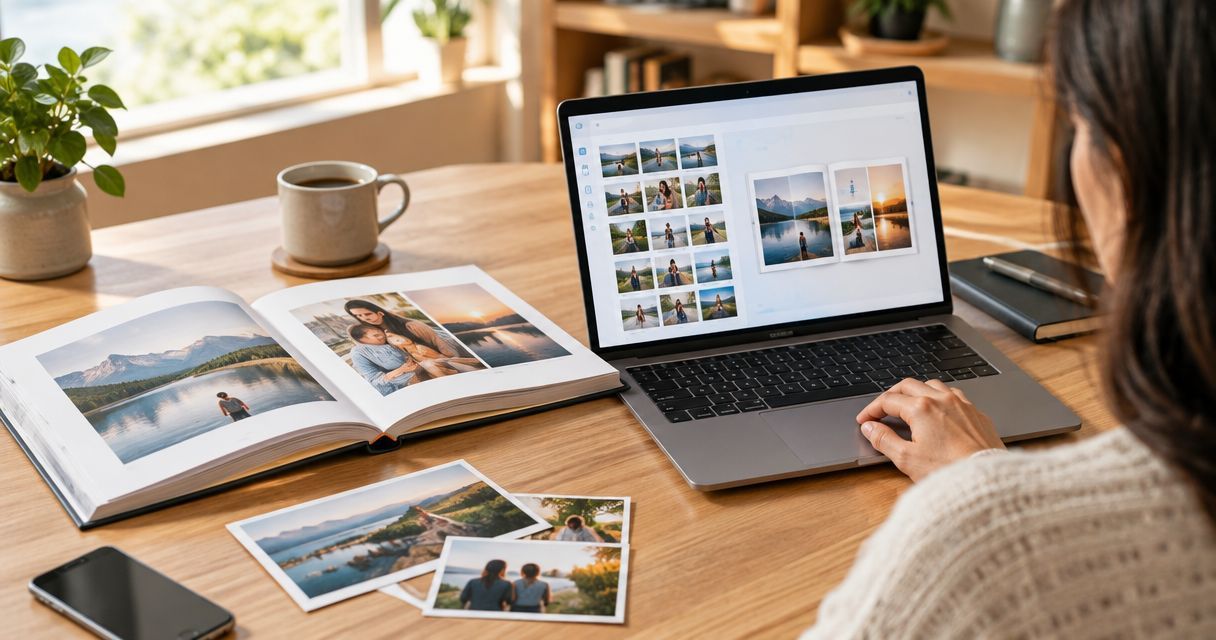
Instead of saving scattered Facebook pictures whenever you remember them, gather the files into one folder, check their quality and upload your selection to a personalised photo book. This 2026 Facebook photos to photo book workflow takes you from old posts and albums to a readable, carefully checked keepsake.
TL;DR
- For Facebook photos to photo book projects, download files first and use camera originals wherever possible.
- Pixaprints personalised photo books suit people who want to turn their own uploaded photographs into a keepsake.
- Check image resolution, remove duplicates and arrange the story before uploading your selection.
- Proofread names, captions and cropped faces before ordering; a Facebook preview is not a print-quality check.
Why this matters
A photograph that looks lovely in a Facebook feed can look soft when stretched across a printed page. Downloading it does not restore detail lost during uploading or compression, so finding the original is the most useful quality improvement you can make.
Pixaprints personalised photo books are best for people who want a keepsake made from their own uploaded photographs. This workflow uses downloaded files rather than depending on a direct Facebook connection. Its advantage is control over selection; the trade-off is that you must organise and check the pictures yourself.
Decide the book's purpose before collecting everything. A holiday story needs a different selection from a family celebration, and choosing between photo book sizes and formats helps you judge which photographs need room and which belong together.
Before you start
- Access and permission: Sign in to the Facebook account holding your photographs. Ask the photographer before using someone else's pictures, and agree which sensitive family images belong in a printed gift.
- Files and workspace: Have a computer or phone with room for downloads, access to your original camera photographs where possible, and a folder for the book project. A larger screen helps with checking faces and captions.
- The easily missed catch: A Facebook information export is not a collection of every photograph in which you appear. Pictures uploaded by other people need separate attention; ask their owners for the original files rather than assuming tagged photographs will arrive in your export.
Keep your Facebook password out of messages and shared documents. This file-based process needs downloaded photographs, not shared account credentials.
Photo collection
Choose your download route
Use individual downloads for a small, focused collection. Use an account export when you need to search through photographs you uploaded across several albums, then replace important images with camera originals when you can find them.
| Route | Best for | Advantage | Limitation |
|---|---|---|---|
| Individual photo downloads | A short, already chosen selection | You collect only the pictures you want | Repeating the process becomes fiddly for a large collection |
| Facebook information export | Reviewing your own uploaded collection | You can sort downloaded files together | You still need to find the relevant images and check quality |
| Camera originals | Photographs that deserve a prominent place | You avoid relying on the Facebook copy | Originals can be scattered across devices and backups |
- Create a project folder with a clear name, such as
Family memories 2026. Add separate folders calledDownloaded files,Selected photosandOriginals. - For individual pictures, open the photograph itself on Facebook rather than saving the feed thumbnail. On the desktop website, open its photo menu and select Download where offered.
- For a larger collection, open Facebook's account settings and find the information-export controls in Accounts Centre. Select the correct Facebook profile, the relevant photo information and a date range covering your project.
- Choose the highest media quality offered. Request the export, then download and extract the archive when Facebook makes it ready.
- Open several downloaded photographs outside Facebook. Check that they are image files, not shortcuts, web pages or screenshots of the surrounding post.
Expected result: Your project folder contains photographs you can open independently of Facebook. Keep the untouched downloads separate from the selection you edit.
Image checks
Check detail before choosing layouts
A download's pixel dimensions tell you more about enlargement potential than its appearance in a small feed preview. Open the image's information or properties in your device's photo viewer and inspect the dimensions in pixels.
- Find originals. Search your phone library, computer folders and backups for the strongest pictures. Match the scene and expression, not just the filename.
- Inspect detail. Enlarge each candidate to inspect eyes, faces and important background details. Reject accidental screenshots when a proper image file exists.
- Remove duplicates. Keep the best expression from a burst rather than several almost identical frames. Retain a second frame only when it adds something to the story.
- Match the space. Give clear, detailed photographs the largest spaces. Keep a meaningful but softer image smaller instead of making it the main spread.
For planning, an image measuring 1,800 × 1,200 pixels provides 300 pixels per inch at 6 × 4 inches. At 12 × 8 inches, the same image provides 150 pixels per inch. These are resolution calculations, not Pixaprints product specifications or a promise of print quality.
Expected result: Your selection contains deliberate choices, with larger placements reserved for files that support them. You also know which photographs need smaller spaces or replacement originals.
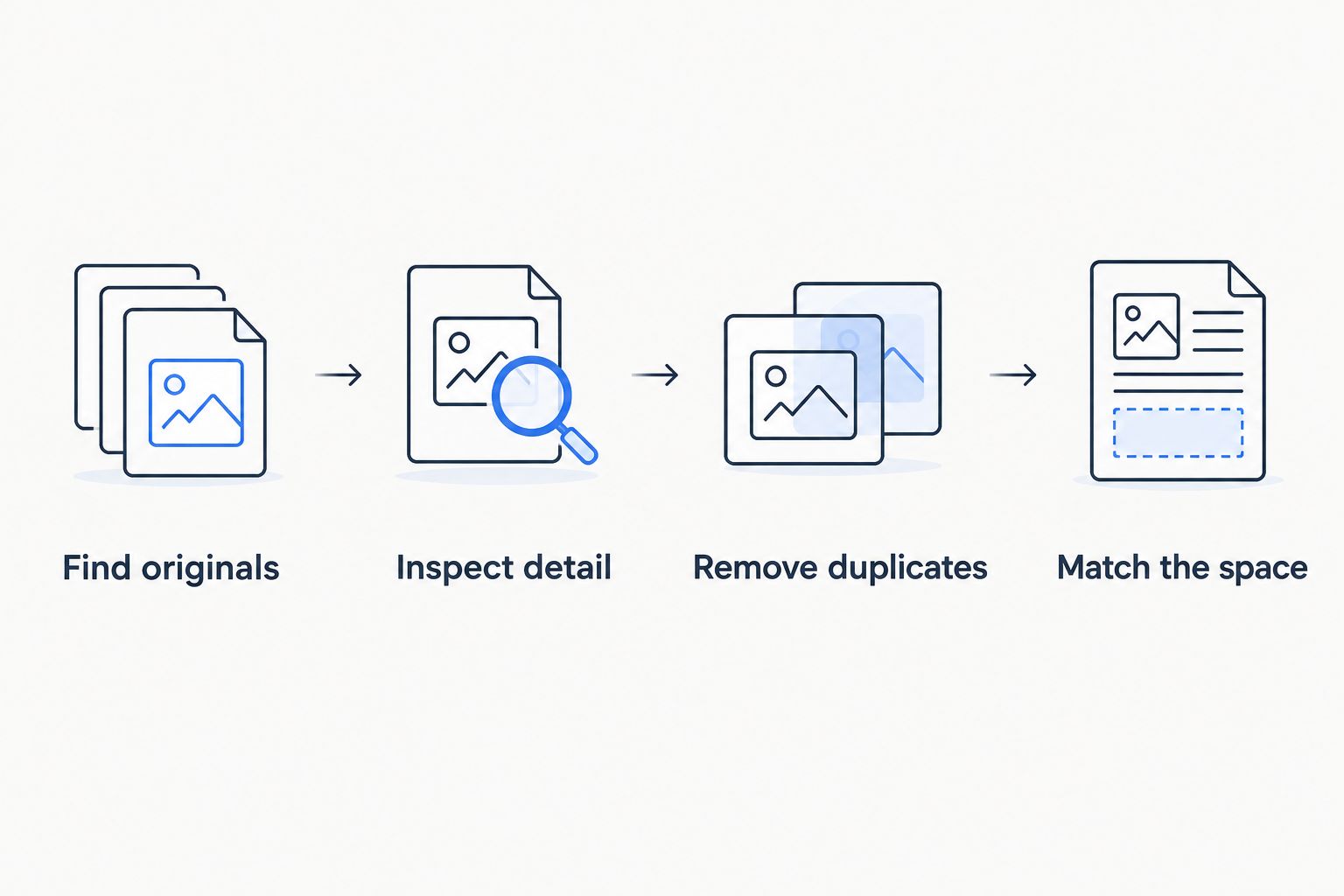
Check the files before deciding which photographs deserve the largest spaces.
Story and upload
Build a sequence before opening the editor
Your Facebook posting order is not necessarily your book's story order. A late upload, anniversary repost or shared memory can put a photograph well away from when the moment happened.
- Choose a simple structure: chronological order for a trip, or themed sections for a family collection. Write the sequence in a short document before uploading.
- Rename working copies so they sort predictably. Names such as
arrival,beach walkandfamily supperare easier to recognise than an unexplained string of digits. - Record names, places and dates separately. Use the date the photograph was taken, not the Facebook posting date; confirm uncertain details with someone who remembers.
- Open the Pixaprints photo book creation process and upload your selected files using the controls displayed there. Keep your local folder as the reference collection.
- Place photographs according to the story, checking each page as you build. Use fewer pictures when a group becomes too small to enjoy.
Expected result: The draft reads as a sequence of memories rather than a copy of your Facebook feed. Every selected photograph has a reason to be there.
For a 2026 family reunion book, for example, you might move from preparations to arrivals, shared activities and a closing group photograph. That is a suggested story structure, not a required template or page count.
Layout and final proof
Review the book as a reader
A successful upload proves that a file transferred; it does not prove that the finished page looks right. Inspect the layout itself, including the cover, and treat every crop as a separate decision.
- Check faces, hands and meaningful details near page edges. Keep essential subjects away from the centre fold unless the selected layout clearly accommodates them.
- Review every crop. A portrait photograph placed in a landscape-shaped space can lose the top of a head or remove someone standing at the side.
- Read captions aloud. Confirm spelling, relationships and place names, especially where Facebook nicknames differ from the names you want in print.
- Check any image-quality warnings shown during creation. Replace the file, reduce its placement size or choose another picture rather than dismissing the warning automatically.
- Review the cover and opening and closing pages together. If the title says
Summer 2026, make sure that describes the photographs inside.
Expected result: You have reviewed every placed image and every line of text. The final preview matches the story you intended, with no unexplained gaps or accidental repeats.
Leave a pause between designing and proofreading. Returning with fresh eyes makes it easier to notice the missing person, repeated photograph or caption attached to the wrong scene.
Second workflow: a shared event collection
For a wedding, birthday or reunion, start with contributions from the people who took the photographs rather than relying entirely on Facebook downloads. This route is best for gathering different viewpoints, but it needs someone to keep the collection organised.
Ask contributors to send original image files through an agreed file-sharing method. Give them a clear brief: the occasion, the people you want included and any moments missing from your own photographs. Do not ask them to send account passwords or export their entire Facebook history.
Selection matters more as contributions accumulate. The distinction behind AI versus manual photo culling is relevant here: identifying near-duplicates and choosing the expression your family loves are separate decisions. Whatever selection method you use, review the final choices yourself.
Keep a simple record of who supplied each picture and any requested exclusions. Before uploading the shared selection, resolve conflicting captions and confirm permission for photographs involving children or private occasions.
Troubleshooting
A downloaded photograph looks blurry
First, check whether you saved the full photograph or a thumbnail. Reopen the photograph on Facebook and use its download control rather than taking a screenshot.
If the downloaded file remains soft, look for the original. Enlarging or sharpening a compressed copy does not recover missing photographic detail; a smaller placement is the safer choice when no better file exists.
The export is missing a photograph of you
Check who uploaded it. Being tagged does not make another person's upload part of your own photo collection.
Ask the uploader for the image file and permission to include it. Also check that your export request covered the correct profile and date range.
The archive will not upload as photographs
Extract the downloaded archive first, then open the image folders inside it. Upload the selected image files, not the archive or the accompanying account-information pages.
Keep folder organisation outside the editor too. That makes replacing a photograph much easier if you discover a better original later.
Faces disappear when a photograph fills its space
The photograph and its placement have different proportions. Reposition the crop, choose a differently shaped placement where offered, or select a photograph with more room around the subjects.
Do not sacrifice a person's face just to fill a rectangle. Empty space is preferable to an important detail cut in half.
The sequence follows upload dates, not the event
Rebuild the order using the occasion itself and any reliable capture dates. A Facebook post dated in 2026 does not establish that the photograph was taken in 2026.
Use a broad caption when the exact date is uncertain. A truthful place name or event description is better than a precise date nobody can confirm.
Customise your workflow
Once the first book is finished, keep a reusable project folder with the selected originals, caption document and a note of the intended sequence. Store a separate backup rather than treating the Facebook album as your only copy.
For your next Pixaprints photo book, begin that folder while the event is still fresh. Add names and little details as you collect pictures; the story behind the photograph is harder to reconstruct than the upload process.
Expand the selection thoughtfully. A family-history book benefits from context and confirmed identities, while a travel book benefits from scenes that connect the people, places and activities.
FAQ
How do I turn Facebook photos into a photo book?
Download the photographs, check their quality, organise your selection and upload the files to a photo book creation service. Review every crop and caption before ordering.
Can I use Facebook photographs in a Pixaprints photo book?
You can use downloaded personal photographs in the upload-based photo book workflow described here. Check image quality and make sure you have permission to print photographs taken by someone else.
Is downloading a photograph better than taking a screenshot?
Use the photograph's download option rather than a screenshot. Screenshots capture the displayed view and can include interface elements or lose detail compared with the downloadable image.
Will my Facebook export include every photograph I am tagged in?
Do not rely on your account export to collect photographs uploaded by other people. Ask those uploaders for the original files and permission to print them.
What resolution should Facebook photos have for a photo book?
The useful resolution depends on the photograph's printed size. For example, 1,800 × 1,200 pixels provides 300 pixels per inch at 6 × 4 inches; also inspect the actual image and any editor warnings.
Can I put someone else's Facebook photos in a family book?
Ask the photographer for permission and preferably the original file. Access to a Facebook photograph does not itself give you permission to reproduce it.
Should I arrange the book by Facebook posting date?
Arrange the book by the event or story rather than automatically using posting dates. Reposts and delayed uploads can put photographs out of sequence.
One last thing
Keep the photograph that explains the memory, not just the sharpest photograph. A slightly soft picture of a much-loved relative can earn a smaller place beside a clearer scene, especially when a short, accurate caption explains why it matters.